1 Pin, 3 Checks: Fix Your Google Business Pin Location Fast
A customer calls from a parking lot across the street. "Google says I am here," she says, "but I do not see your shop." Your address is right. Your pin is wrong. The pin is the drop point on the map that tells every phone where to drive. This post shows you how to move that pin to your real door, and the 3 checks that prove the fix worked.
Your written address and your map pin are two different things, and both must be right. Sign in as the owner, open your Business Profile, edit the location, choose Adjust, and drag the pin onto your real entrance. Save. Then check the result on a phone in Maps, the way a customer would. A pin change can trigger a review by Google in some cases, so give it time to land.
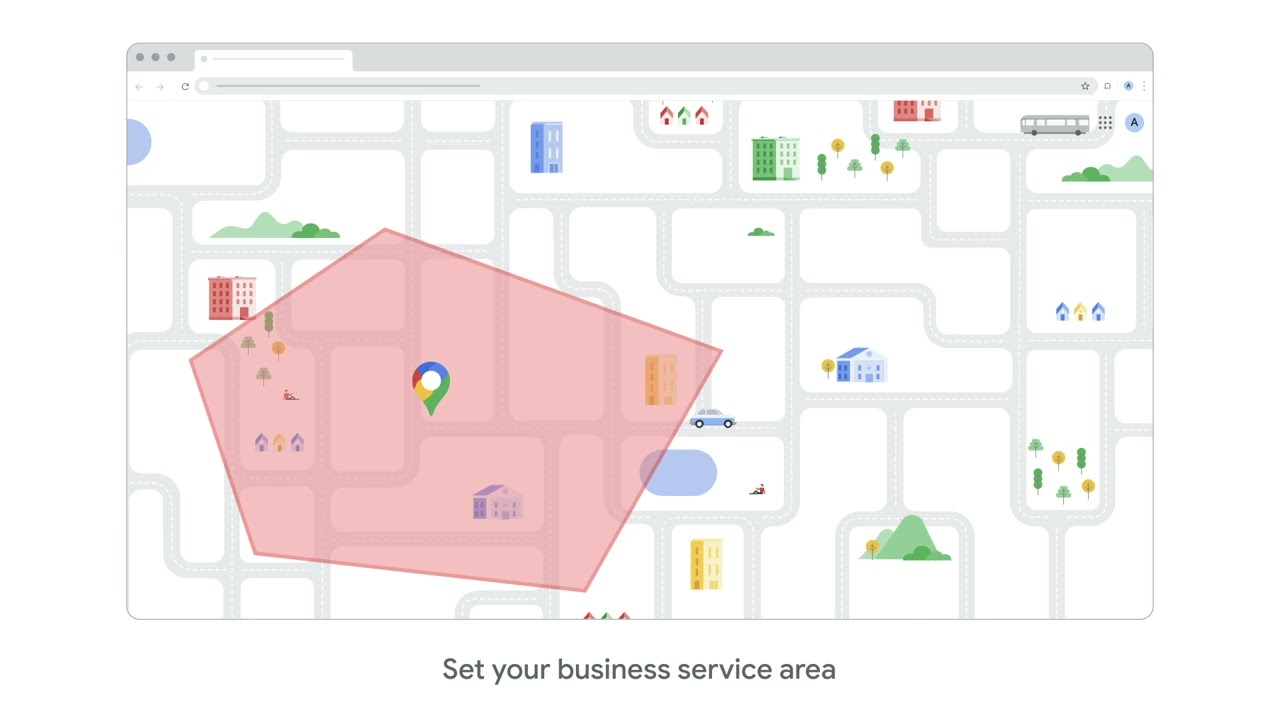
What the video shows: This is Google's own help video from its business address guide. It shows an owner opening the profile, going to the address section, and fixing the business location on the map. You see the same flow this post teaches: edit the profile, open the location area, and adjust the pin when the address alone does not put the marker in the right spot. The video keeps it simple, because the fix is simple: the address is the words, the pin is the place, and the owner can set both. Watch it once before you start, and the steps below will feel familiar.
What is a map pin, and why is it not the same as your address?
Your address is words: a street number, a street name, a city, a zip code. Your pin is a point on the map: the exact spot where Google drops the marker and ends the drive.
Google turns your words into a point on its own. Most days it lands on your roof. Some days it lands on a vacant lot, a neighbor's door, or the back of your building by the dumpsters. When that happens, every customer who taps "Directions" gets led to the wrong spot, even though your address reads perfect.
Think of it like a mailing label and a porch. The label can be right while the driver still leaves the box at the wrong porch. Your address is the label. Your pin is the porch. Drivers follow the pin.
Here is the same idea in a second picture. Think of a treasure map. The list of clues can be perfect, but if the X sits on the wrong hill, you dig in the wrong dirt. The pin is the X. Move the X, and the whole hunt ends at your door.

How do you move the pin, step by step?
Do this signed in with the Google account that owns or manages the profile. A customer edit can suggest a move, but the owner's edit is the one that sticks.
- Open your Business Profile. Search your business name on Google, or open it in the Maps app.
- Choose Edit profile, then find the Location section.
- Next to "Business location," choose Edit.
- Choose Adjust. A map opens with your pin on it.
- Zoom in, far in, until you can see your building's shape and doors.
- Drag the pin onto your real entrance: the door customers walk through, not the center of the roof and not the back dock.
- Choose Done, then Save.
Google's own help gives the same path: Edit profile, Location, Edit, Adjust, move the map so the pin points at your business, then Done and Save.
One tip that saves pain: if your shop sits in a plaza, put the pin on your unit's door, not the plaza's main sign. Drivers end their trip at the pin. A pin at the main sign leaves them walking a long row of doors, guessing.
Check 1: How do you test the fix like a customer?
Wait for the change to land. Google reviews core edits like location. Many small edits show fast, sometimes in minutes, and some take days. There is no bell that rings when it lands, so check once a day, not once an hour. Do not drag the pin again while you wait. A second edit can restart the review.
Then test it the real way. Open Maps on a phone, signed out if you can, or in a fresh search. Type your business name. Tap Directions from a point a mile or two away. Follow the route to its end. Does the trip end at your door, your lot, or the wrong lot across the street?
Also switch to the satellite view, the photo view of the map, and zoom in on the end of the route. On satellite view you can see roofs and lots, so a wrong end point is easy to spot.

Check 2: Does your written address still match your pin?
A pin fix can fail if the words fight the point. Read your address out loud, digit by digit. One wrong digit in the street number can pull the pin to a different block when Google re-checks it.
NAP is a short name for three facts: Name, Address, Phone. Your NAP should read the same on your profile, your website, and your other listings. If your website says "1200 NW 7th St, Suite 4" and your profile says "1200 NW 7th Street" with no suite, Google sees two claims and may trust the wrong one. Make the words match, letter for letter, then let the pin sit on the door.
Think of the address as the name tag and the pin as the seat. If the name tag says row 4 and the seat is in row 9, the usher sends people to the wrong place. Tag and seat must agree.
Check 3: What if the pin will not stay put?
If you move the pin and it snaps back, one of three things is often true. Your address text has an error, and Google keeps placing the pin from the bad text. Or a public edit moved it: anyone can suggest a change to a listing, and Google may accept it. Or your facts differ across the web, and Google trusts the weight of the other claims.
Fix in this order. First, correct the address text, then move the pin again. Second, make your NAP match on your site and your main listings. Third, if the pin is still wrong after the text is clean, ask Google Business Profile support for help, and tell them the exact spot: the cross streets and what sits next to your door.
Keep a dated note of every pin change you make: the day, the old spot, the new spot. If the pin drifts again next month, your note tells you whether you are fighting a one-time glitch or a pattern, like a data source that keeps feeding Google the old point. A pattern has a source, and the source can be fixed. A note turns a mystery into a short list of suspects.
Checklist:
- Sign in as the owner before you edit the pin
- Zoom in until you can see doors, then drop the pin on your entrance
- Save once, then wait for Google's review to finish
- Test with Directions on a phone, from a mile away
- Read your address digit by digit and fix any wrong number
- Make your name, address, and phone match on your site and listings
Can a pin move cause trouble with Google?
It can trigger a review, and in some cases Google may ask you to verify the business again. Verify means proving to Google that you run the business at that place, sometimes with a video or a postcard code. This does not happen on every pin move. A small move to your real door is a correction, and corrections are normal. A big move to a new address is a stronger claim, and Google checks those with more care.
So do not fear the small fix. Do fear leaving a wrong pin in place for months, sending every new customer to the wrong lot. That costs you real sales every week.
What are the honest limits of a pin fix?
The pin controls where your marker sits and where drives end. It does not control the roads. If the route ends at a closed gate or the wrong side of a divided road, the map's road data may be the problem, not your listing. In Maps you can report a map data problem for the road itself.
Also, the pin does not fix rank. Moving a pin a few feet to your true door is right and safe. Moving it toward a busy corner where you do not exist, to game the map, is a false claim. Google can undo it or worse. Keep the pin honest: on your door, where your customers walk in.
What if your business moved, or serves customers at their homes?
A pin fix and a move are not the same job. If your business moved to a new address, edit the address itself first, then set the pin on the new door. Google may ask you to verify the business again after a move, because a new address is a new claim about where you are. Plan for that check instead of fearing it: have your proof ready, like a lease, a license, or a utility bill with the new address.
If your business goes to the customer, like a plumber, a cleaner, or a repair tech, you may run a service-area profile, where your address is hidden and you set the area you serve instead. Those profiles do not show a public pin the same way a storefront does. If you have no storefront, do not invent one to get a pin. Set your service area with care, town by town, and keep your hidden address true in the profile's own fields. Google can still ask you to prove it.
And if you have both, a real shop customers visit plus jobs you travel to, your storefront profile carries the pin at the shop's door, and your service area settings carry the travel part. One profile can hold both truths when you set each field for what it is.
Your free tool for this step
Your free tool for this step is the NAP Consistency Checker, free at https://aidcos.world/#free-tools. It compares your business name, address, and phone across your key listings, so you can spot the mismatched words that fight your pin.
Use it like this:
- Run the checker before you move the pin, and note every mismatch it finds.
- Fix the mismatches: same name, same address form, same phone, everywhere.
- Move the pin in your profile with the steps in this post.
- Run the checker once more after the change lands.
- Do the phone Directions test to close the loop.
What it does not do: it does not move your pin or edit your Google profile. Google only lets the owner do that, inside the profile. The checker keeps your words in line, so your pin stays where you put it.
The bottom line
Address is words. Pin is place. Both must be right. Sign in as the owner, Edit profile, Location, Adjust, and drag the pin onto your real entrance. Save once and let Google review it. Then run the 3 checks: test Directions on a phone like a customer, read your address digit by digit, and make your name, address, and phone match everywhere. One pin, on your door, ends the lost-customer calls.
Part of: Google Business Profile Help: Costs, Fixes, and Guides for Local Businesses
More guides in this branch:
Keep reading: all Aid & Cos deep-dives