5 Steps: Claim Your Google Listing Today
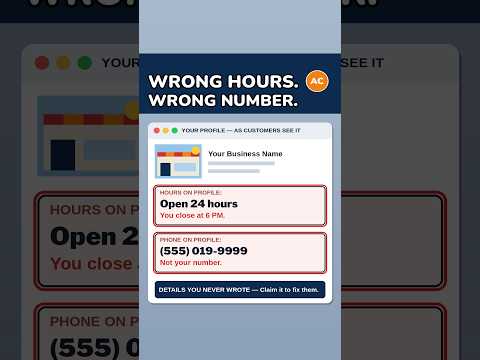
You run a real shop and do real work each day. But when a new client looks for you on Google, they may see a listing you do not own. The hours may be wrong. The phone may be wrong. The pin may sit on the wrong street. You try to fix it, and Google says no. This post shows you how to claim your listing in 5 steps, fix a copy of it, handle a claim by a stranger, and spot a scam for this free step.
A Google Business Profile is the free listing Google shows for your shop in Search and Maps. To claim it, search for your shop, claim it or add it if it is not there, fill in true facts, prove you own it, and finish the profile. The claim is free.
What the video shows: This short video is called "How to Claim Your Google Business Listing: Then Fix the Details." It covers the two parts of the job: claim the listing that is yours, then fix the details on it so guests see true facts. The 5 steps in this post walk through that same job in full.
What is a Google listing, and why claim it?
A listing is a card of facts: your name, street, phone, hours, photos, and reviews. Reviews are notes clients write about work you did. Google shows this card when a person near you looks for help. Think of it like the sign on your shop door. If the sign is wrong, people walk past or call the wrong place.
Claim means you ask for the right to run the card. At first Google may make the card from facts found on the web or from user tips. That card can be wrong. When you claim it, you get the right to change facts, add photos, and reply to reviews. If you do not claim it, a wrong fact can stay wrong and a bad actor can try to claim it. A bad actor is a person who means to do harm. Claiming does not mean Google will show you first. Google does not promise any rank. Rank means where you show in the list of shops. Claiming means you can make your facts true.
What do you need ready before you start?
Get your facts in one place first. This takes 10 to 15 minutes and saves typos later. A typo is a small error in typing, like one wrong letter. Write your true shop name as on your sign and bills. Do not add extra words. If your sign says "Sam's Tire Shop," do not type "Sam's Tire Shop Best Cheap Tires in Town." Extra words can cause a fail in proof and break Google rules.
Write your true street address, with number, street, town, and zip code. Zip code is the 5-digit code for your mail area. If you work from home and go to clients, write your home base. You can pick a choice later that hides it from the public. That is for a service-area business. Service-area means you go to the client. Write your true phone, one you can answer, and your true hours. Hours means the days and times you are open.
Have proof near: a bill in your shop name, a lease if you rent, your license if you have one, your keys, and a photo of your sign. Lease is the paper you sign to rent a place. License is a paper from the town or state that says you can do this work. Use a Google account you will keep and that is yours, not a worker's who may leave.
Step 1: How do you find your listing?
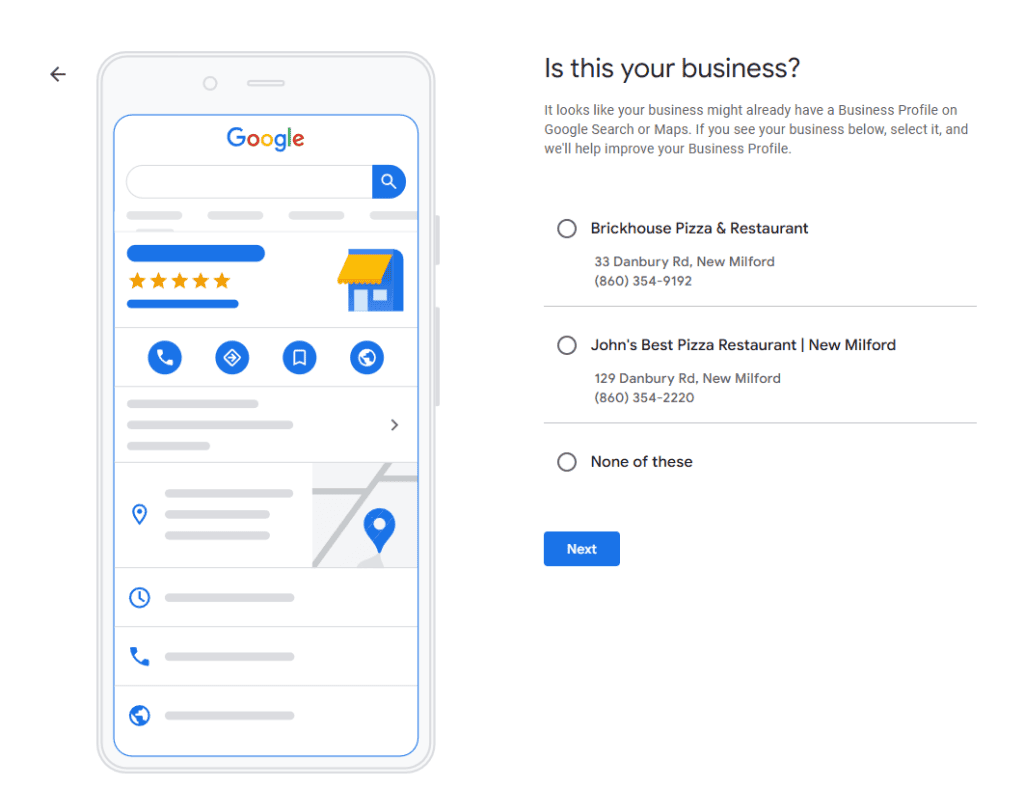
Way one: go to google.com/business, Google's page for shop owners, and sign in. Way two: go to Google Search or Maps and type your shop name and town, like "Sam's Tire Shop Miami." Look at the card that shows up. Check the name, street, and phone. Is it your shop, or a shop with a like name in a far town?
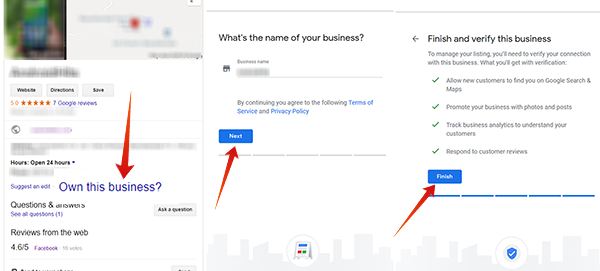
If you see your shop, look for "Claim this business" or "Own this business?" On Maps you may need to tap the listing first. If you do not see your shop, no card is there yet. You will add it in Step 2. Do not claim a shop that is not yours. Use this test: if a client stood at that map pin, would they be at your door? The map pin is the small drop mark that shows place on the map. If yes, it is likely yours. Write down any wrong hours or phone. You will fix them in Step 5.
Step 2: How do you claim it, or add it if it is not there?
Path A: claim a card that is there. Click "Claim this business." Sign in with your owner account. Check the name and street letter by letter. If they are right, go on. You will fill facts in Step 3, then prove you own it in Step 4. The screen order may swap those steps a bit. That is normal.
Path B: add a card that is not there. In Maps, pick "Add a missing place." Missing place means a real place that is not on the map yet. In google.com/business, pick to add a new business. Type your true name. Pick your kind of work, called category. Category is the label for what you do, like "tire shop" or "hair salon." Salon is a shop that cuts and styles hair. Pick the main kind that fits best.
Type your street with care. If you are a service-area business, pick that choice and type only towns you truly serve. Serve means you will go there to do work. Then type your phone and web site if you have one. Web site is your page on the web. Make just one listing: one shop, one listing, at one true place. Extra listings are duplicates. Duplicate means a copy of the same thing. They split reviews and hurt trust. If Google warns a listing like yours is there, stop, go back to Step 1, and claim that one.
Step 3: How do you fill in true facts?
Name: true name only, as on your sign. No extra words, no phone number in the name. Address: type number and street, add suite if you have one. Suite is your unit number in a big building. Check the pin and drag it if it sits on the wrong door. A pin off by one block can send clients to the wrong lot. Lot is the land where a building sits. Phone: type the main phone clients should call. Check each digit. A digit is one number, 0 to 9. Read it out loud, then back to front to catch a swap. A swap is two digits in the wrong order. This phone shows on the call button, so a wrong phone means lost calls.
Hours: set each day true. If you say open till 6 p.m., be open till 6 p.m. Category and services: category is your main kind of work. Services are jobs you do under that kind. For a tire shop: tire fix, tire swap, wheel balance. Balance means making the wheel spin smooth. List only jobs you truly do. Description is words that tell what you do and who you help. Keep it plain and true. Add a clear photo of your sign, shop front in day light, and work space. Check before proof: name, street, phone, and hours must match your sign and bills. Proof is much harder when facts do not match.
This match idea is the hardest idea in this post, so we teach it two ways. Way one: think of your facts as keys on a ring. Sign is one key. Bill is one key. Listing is one key. Web site is one key. All keys must fit the same lock for Google to say "this is your shop." If the sign says "Sam's Tire Shop," the bill says "Sam's Tire Shop LLC," and the listing says "Sam's Best Tires," the keys do not match and the lock sticks. Way two: think of a name tag at school. The child's tag says "Sam." The teacher's list says "Sam." The lunch box says "Sam." All match, so the teacher knows the child. If one tag says a phone number, the teacher must stop and ask more. Google does the same. Line up your tags first, and proof goes fast.
Step 4: How do you prove the shop is yours?
Step 4 is proof. Google calls this verification. Verification means Google checks the shop is real and you run it. Google picks the way. You do not pick. It depends on your kind of shop, town, and facts. Not every shop gets every way, and at times Google asks for more than one way. The ways are a phone or text code, an email, a video recording, a live video call, or mail with a code on a card. A code is a short set of digits you type to prove you got the call, text, or card. A claimed listing lets the owner fix name, address, and hours and reply to reviews, once proof is done.
Phone or text: Google calls or texts the phone on your listing. Type the code in your profile. You must be able to answer that phone. If it goes to a robot menu that says "press 1, press 2," the code can get lost. Have a human answer or turn the menu off for a short time. Keep the code to yourself. Email: Google sends steps to the email shown on your screen. Be sure you can open that inbox. Inbox is the box where mail lands. Do each step in order, and check your junk box if you do not see it. Junk box is where mail that looks like ads goes.
Video recording: record live on your phone in the profile flow. Flow means the step-by-step screens Google shows. You cannot use an old clip. Show your street sign or number, your sign and work space, and that you run it, like opening your door with your key or a staff-only room. Staff-only means only workers can go there. Keep private numbers off camera. Cover a bill number with your thumb and show the name only. Live video call: a real helper watches live. Show the same three things at the shop, in your listed open hours, with keys and papers in reach. Google verifies ownership by methods such as phone or text, email, video recording, live video call, or mail, and not every business gets every method.
Mail: Google mails a card to your shop street. Most cards come in about 14 days. The code stops working after 30 days. Math: if the card took 14 days, you have 30 − 14 = 16 days left. Type it the day it comes. While you wait, do not change name, street, or category. A change can cancel the code. Do not ask for a new code. A new ask cancels the old code and restarts the wait. Some shops prove at once if their web site is proven in Google Search Console with the same account. Search Console is Google's free tool that proves you run a web site. You cannot force this. A video check can take up to 5 business days. Business days are Monday to Friday. If proof fails, do not make a new listing. Read Google's note, fix that one gap, and try again on the same listing.

Step 5: How do you fix and finish the profile?
Read the whole profile as a client. Name right? Street right? Pin on your door? Phone right? Call it from a friend's phone. Does it ring your shop? Set normal hours and holiday hours. Holiday hours are hours for a day like Thanksgiving or New Year's Day. If you will be closed, mark closed.
Add services and attributes. Attributes are extra true facts like "women-led" or "has parking," if true. If you add a price, add the true price. Do not add a low price to lure calls and charge more. Lure means to draw in with a false hope. Add clear photos: shop front, sign, work space, and goods. Keep photos bright and sharp. Sharp means clear, not blurry. Do not use stock photos. Stock photos are generic photos from a photo bank, not your shop. Reply to reviews in a kind, short way. Thank the client. If a review names a problem, say what you will fix.
Check the performance view once a month. Performance view shows counts like calls, direction asks, and views. Directions means the route on the map to your door. If calls stay at zero, test phone and hours again. Add helpers as a manager if staff helps you. Manager can edit facts but is not the owner. Do not share your pass word or code.
What do you do if you find a duplicate listing?
A duplicate is a second listing for the same shop at the same place. Reviews split across two cards, so each looks weak. Facts clash — one card says open till 6 p.m., the other till 5 p.m. — so clients do not know which is true. Trust drops.
Find both cards on Search and Maps. Write the name, street, and phone on each. Mark which you own and which has more reviews. Claim the one you do not own if it is truly your shop. You need to own both before Google can merge them well. Merge means to join two cards into one, keeping reviews in one place. Do not delete a duplicate that has reviews, or reviews can be lost. Use Google's help path to report a duplicate or ask for a merge. Give both names, streets, and links if you have them. Make facts on both the same and true while you wait. Keep one listing per real place. If your shop moved, update the street on the one listing.
What do you do if someone else claimed your listing?
Gather facts first: true name, street, phone, a bill or license in your shop name, and a photo of your sign. Try the claim flow. If someone owns it, Google shows a note that it is claimed. It may show a hint of the owner's email, like the first letters, so you can tell if it is a past worker or firm you hired. If you know them, ask them to add you as owner or hand it to you. That is the fastest fix.
If you do not know the owner or they will not help, request access. Request means you ask Google to let you run it. Google notes the owner, who has a set time to reply. If they say no or do not reply, Google may let you appeal. Appeal means you ask Google to look again with your proof. Send bill, license, sign photo, and a short dated note that you run the shop there. Do not make a new duplicate to get around the block. It splits reviews and makes the appeal harder. If the owner uses your listing to send clients to a different phone, say so in plain words. Once you get it back, fix all facts and remove managers you do not know. Use a strong pass word and two-step sign-in. Two-step means Google asks for a phone code plus your pass word.
How do you spot scams that charge for this free step?
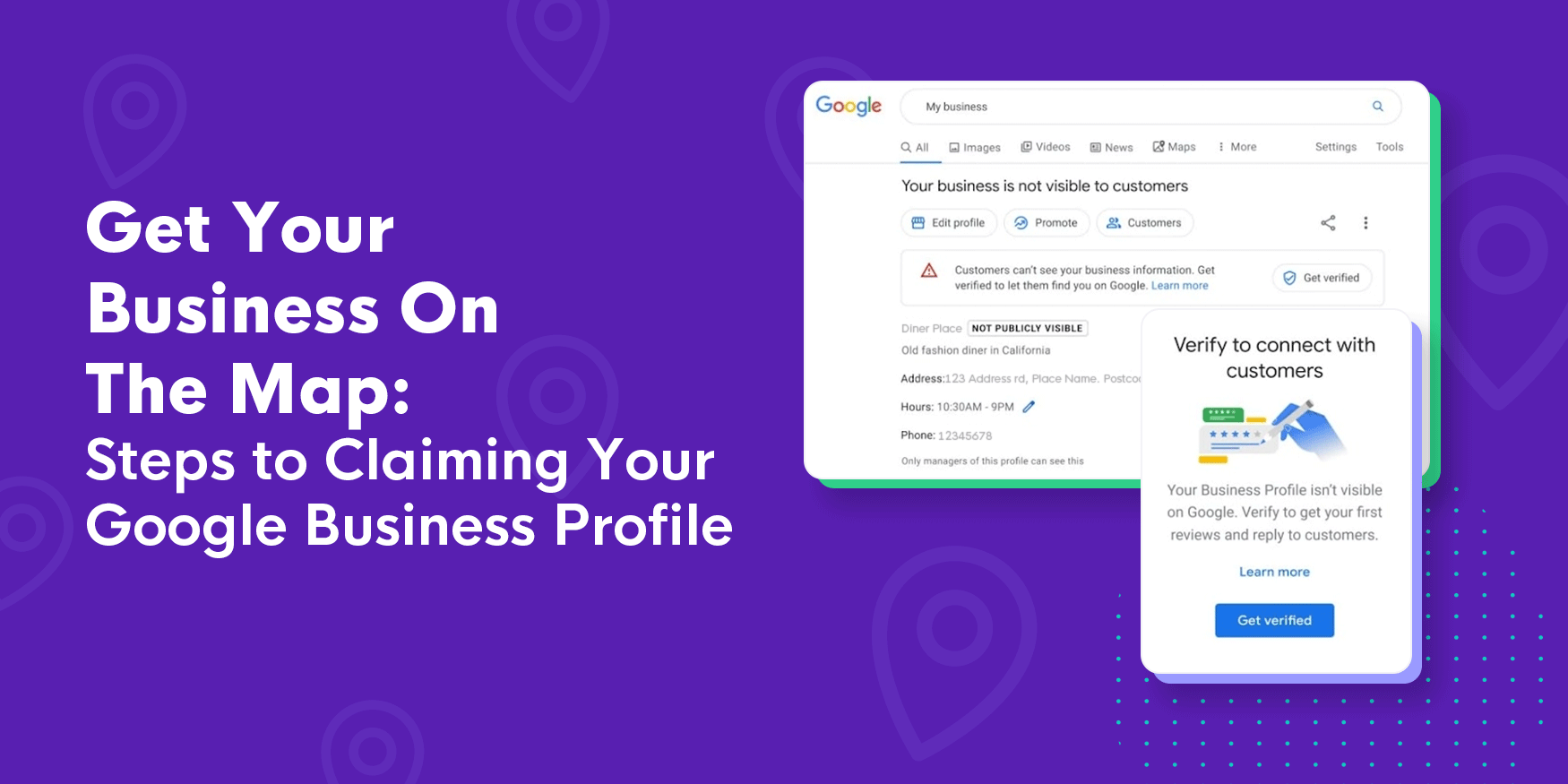
Claiming and verification are free. Google does not charge to claim, verify, or keep your listing live. Signs of a scam: a caller says "Pay now or your listing will be deleted." Google does not delete for lack of pay. A caller says "We are Google" and asks for your code or pass word. Google will not call to ask for your code. Mail says you must pay to claim, verify, or renew. Renew means pay again to keep a thing. There is no renewal fee and no expire date for lack of pay. Expire means stop working after a date. A firm says it can force proof or sell a verified profile. There is no paid fast lane, and a bought profile can be taken down. A caller wants gift card or wire pay at once with no clear bill. Wire means send money in a way hard to undo. Scams rush you. Real firms send clear bills and let you think.
When a scam calls, hang up. Go to your profile through google.com/business yourself, not a link the caller sends. Some firms do real paid work like photos. That can be worth pay if you choose it. The claim itself is still free. Math: $0 + $0 = $0. If a caller asks $299 to claim, that is the caller's fee for a free step.
Your free tool for this step
Your free tool for this step is the GMB Profile Grader at https://aidcos.world/#free-tools
GMB is short for Google Business Profile. The Grader is a checklist tool. You go through the checklist and it gives your profile a letter grade from A to F, like a school grade. An A means strong. An F means big parts are missing or wrong. It ranks the 3 fixes that help most, in order.
Claim first, then run the Grader. Fix the top gaps it names: a name that does not match your sign, a missing category, thin hours, no photos, or a phone gap. Fix facts so sign, bills, and listing match. That match makes proof smooth. Run it again in a month. The Grader does not claim for you. Only you, as owner, can claim through Google. It does not verify you. Only Google verifies. It does not promise any rank. Go to https://aidcos.world/#free-tools, find the GMB Profile Grader, and fix one gap at a time.
The bottom line
Claim your listing in 5 steps: search, claim or add, fill true facts, prove you own it, and fix and finish. Keep name, street, phone, and hours the same on sign, bills, and listing. Make one listing per real place, merge duplicates through Google help, and use request access if someone else holds your listing. Never pay a caller who says this free step costs a fee, and never share your code or pass word. Google charges $0. Claim it yourself and keep facts true each month.
Part of: Google Business Profile Help: Costs, Fixes, and Guides for Local Businesses
More guides in this branch:
Keep reading: all Aid & Cos deep-dives