5 Ways Google Checks Your Shop Is Real
You did the hard part. You made your Google Business Profile. You typed your shop name, your hours, your phone, and your services. Then Google stops you cold with two words: "Get verified." Your profile will not fully show on Search or Maps. You cannot fix facts, reply to reviews the right way, or trust that clients see the real you. You click and hope for a quick code by text. Instead Google asks for a video of your shop, and your stomach drops. What video? Of what? And why you, when your friend got a postcard? This post walks you through all 5 main ways Google checks that a shop is real, what to have ready for each one, how long each one takes, and what to do when a check fails or loops — in plain words, with no tricks that can get your profile in trouble.
Google picks how you verify, and you cannot swap the method for one you like more. The 5 main ways are a video recording, a phone or text code, an email code, a live video call, and a postcard by mail — and some shops verify at once through a website already proven in Search Console. Video review can take up to 5 business days, postcard codes most often arrive within 14 days, and all codes expire after 30 days. Have your sign, your tools, your keys, and a bill or invoice in your business name ready before you start, and fix the one gap Google names if a try fails.
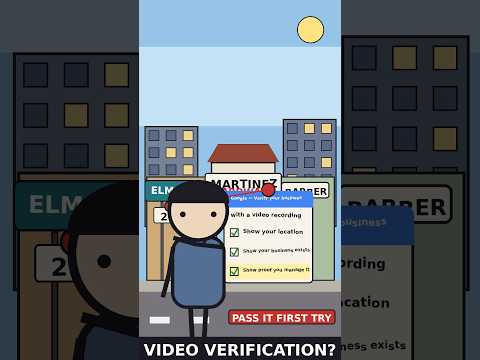
What the video shows: This video is called "Google Business Profile Video Verification: Pass It First Try." It is about one way Google checks a profile: the video recording. It focuses on showing, in your video, that your business is real and that you run it, so you can pass that check the first time. This post covers that way in full, plus the other ways Google may pick for you.
What does verify mean, and why does Google make you do it?
Verify means to prove a thing is true. In this post, it means you prove two things to Google. One: your business is real and it is where you say it is. Two: you are a person who has the right to run that listing.
Your Google Business Profile is the free listing that shows your shop on Google Search and on Google Maps, with your name, hours, phone, photos, and reviews. Think of the profile as your shop's card on the biggest street in town. Anyone can write a card. That is the problem Google has to solve.
If Google let any person claim any shop, a stranger could claim your shop. They could change your hours, move your pin on the map, or take your calls. Fake shops could spring up on streets where no shop stands. So Google asks for proof before it hands you the keys to edit the card. That proof step is verification.
Until you verify, your profile is half alive. It may not show to clients at all. You cannot fully edit your facts. You cannot count on your hours or phone being right. After you verify, you can edit your info, reply to reviews, add photos, and see how people find you. That is why this step is worth doing right, even when it feels slow.
One fact will save you a lot of stress, so learn it now. Google picks the method. You do not. The methods you see depend on your kind of business, your public facts, your region, and your hours. Two shops on the same street can get two different methods. That is normal. It is not a sign you did something wrong. And in some cases Google may ask you to verify with more than one method, one after the other. That is normal too.
What should you have ready before you tap Get verified?
Do not tap the button first and hunt for proof later. For the video and live call ways, you get one live take, and you cannot pause to go find your keys. Get these things ready first. This list costs you 20 minutes now and can save you a failed try and a 5-day wait.
First, make your facts match. Your business name on the profile must be your real name, spelled the same way as on your sign, your site, your bills, and your state papers, if you have them. Your address and phone must match too. If your sign says "Lone Star Roof Care" and your profile says "Lone Star Roof Care LLC Best Roof Deals Dallas," they do not match, and a human who checks your video will see the gap. Fix the profile name to the real name before you start. Real name only — no added sales words.
Next, have proof of place. That means street signs near your shop, your street number on the building, and names of shops near you that a person can check on a map. If you work from home and go to clients, have the street signs near your home base in mind, and know your route for the video.
Next, have proof the business exists. For a shop with a storefront, that is your sign, your storefront, your goods for sale, and your work space. For a service business with no storefront, that is your tools, your gear, your branded truck or van if you have one, work shirts with your name, and cards or flyers with your name. Branded means your business name is printed on the item.
Next, have proof you run it. That means things only a person who runs the shop can do or show. You open the shop door with your key. You open the cash register. You open a staff-only room, like a stock room or a kitchen. You show a bill, an invoice, or a permit in your business name. An invoice is a bill you send a client for work you did. Show the name on the paper. Hide the numbers — we teach that next.
Next, have your phone ready. Video ways must be recorded and sent from a mobile device, through your Business Profile. Mobile device means a phone or a tablet. Charge your phone. Clear space on it. Make sure you are signed in with the Google account that runs the profile. Give the app the rights it asks for — your camera, your mic, and your location — or the recording cannot start right. Mic is short for microphone, the part that hears sound.
Last, pick your time with care. If Google gives you a live video call, the call can only happen in the opening hours listed on your profile. If your hours say you close at 5 p.m., do not start this at 6 p.m. For a recorded video, pick a time with good light, when your shop sign and street signs are easy to see, and when no clients are in the shop whose faces would end up on camera.

Way 1: How does the video recording check work?
This is now the most common way, and the one that scares owners the most. It is not hard. It is strict. Strict means the rules are firm and there is no wiggle room. Let us take the fear out of it by naming each rule.
You record a short video on your phone, inside your Business Profile — not in your normal camera app, and not a clip you filmed last week. Google is clear: you must capture the video live. A pre-recorded video is not allowed. You cannot record it offline and send it later. It must be one take: unedited, with no cuts, no breaks, and no stops. If you mess up mid-take, you stop, and you start a new take. The video must be at least 30 seconds long.
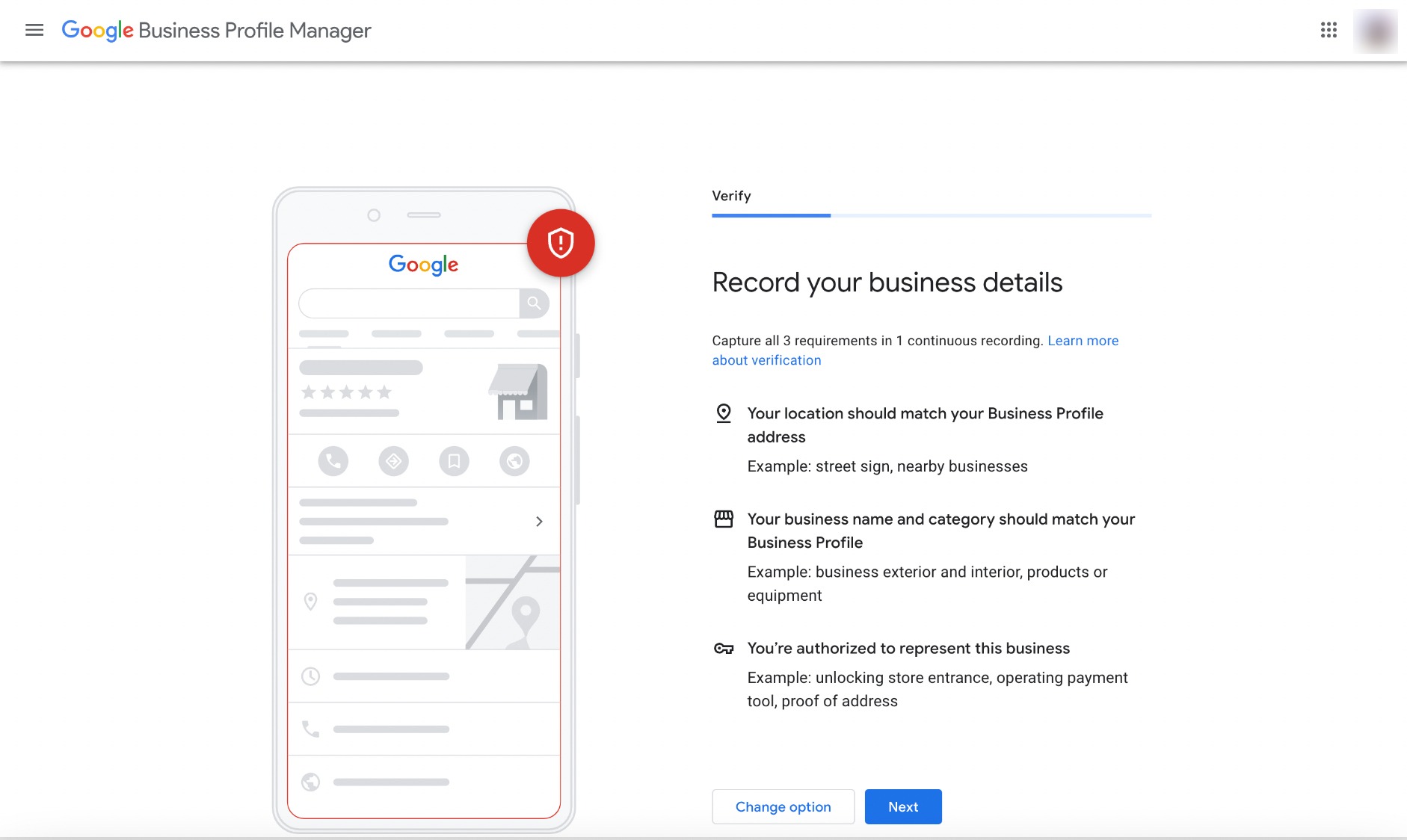
Your one take must prove three things. We will teach this three-part test twice, in two ways, because it is the hardest part of this whole post and the part most failed videos get wrong.
Here is way one to see it. Think of your video as a short story with three scenes, told in one walk with no stops.
Scene one is place. You start outside. You show a street sign, your street number, or shops near you. The story says: "We are here, on this real street."
Scene two is the business. You walk to your sign and your work space. You show your tools, your goods, or your branded van. The story says: "This shop is real, and this is the work it does."
Scene three is you in charge. You open your shop with your key. You open the register or a staff-only door. The story says: "I run this place. A stranger could not film this."
If your story skips a scene, the tale has a hole, and Google cannot say yes. A video of just your tools has no place. A video of just your street has no business. A video of your sign, filmed from the street by a person who never goes in, does not prove who runs it. Three scenes, one walk, no stops.
Now way two to see the same test. Think of a form with three boxes on it.
Box one says LOCATION. Box two says BUSINESS. Box three says MANAGER. A clerk checks your video box by box. Each box needs a clear tick, in the same one video. If two boxes are ticked and one is blank, the form is not done — not because the clerk is mean, but because the blank box is the very thing a fake shop could fake. So before you press record, walk your route in your mind and ask: where in my walk does box one get ticked? Where does box two? Where does box three? If you cannot point to a spot for each box, fix your route first, then record.
For a shop with a storefront, your route can be short. Start at the street sign or your street number. Walk to your sign. Go in with your key. Show your goods or your work space. Open the register or a staff room. Done. Plan for about 60 to 90 seconds of walking. That is more than the 30-second floor, with room to show each scene well.
For a service business with no storefront — you go to the client, the client does not come to you — your route looks like this. Show street signs or well-known spots near your base, so Google can place you on the map. Show your tools and gear, your work shirts, your cards, or your branded van. Then prove you run it: open the van with your key and show the tools laid out for work, or show an invoice or bill in your business name. Your home base does not need a sign. Your proof is your gear plus your papers plus your access.
Keep these things off camera, with no exceptions. No bank account numbers. No tax numbers. No ID numbers. No private facts about you or anyone else. No faces of other people. If a bill has both your business name and a private number on it, cover the number with your thumb or a strip of paper and show the name only. If a client walks in mid-take, stop and start a new take when the shop is clear.
When your take looks right, tap to send it from the same flow. Then wait. Google says a video review can take up to 5 business days. A business day means a day offices are open, Monday to Friday, not a weekend day. If 5 business days pass and then a few more, do not panic and do not make a new profile. Check your status first — we teach that in the fail section below.

Way 2: How does the phone or text check work?
If Google offers this way, it is the fastest of the five. Google sends a code to your business phone by a call or a text. A code is a short set of digits you type into your profile to prove the phone is yours.
Here is the one trap in this way. You must be able to answer that phone yourself, or get texts on it. A phone menu system will not get the code. Phone menu here means the "press 1 for sales, press 2 for help" robot voice that picks up calls. Google calls that an IVR system. If your business line goes straight to a menu, the code call can die in the menu and you will sit there and think Google never sent it.
Fix that before you tap. Have the phone in your hand. If you can, turn the menu off for a short time, or use a line a human answers. Then tap Get verified, pick Phone or SMS, take the call or open the text, and type the code into your profile at once. SMS is just the tech name for a text message.
Keep your code to yourself. Google will not call you to ask for your code. No real helper will ask for it either. A code is like a key: the person who has it can prove the phone is theirs. Type it yourself, in your own profile, and share it with no one.
Way 3: How does the email check work?
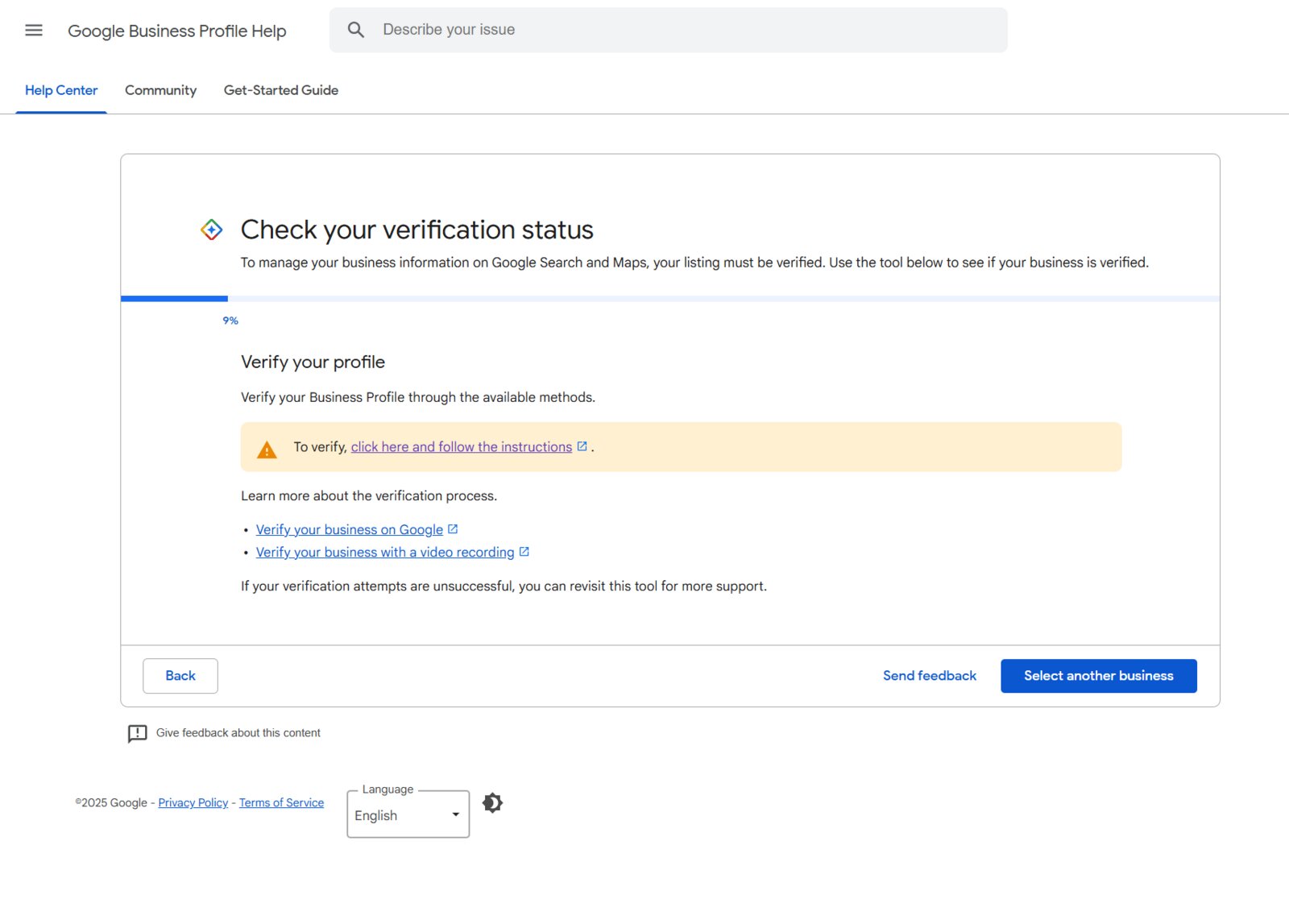
If Google offers email, it sends steps to the email address shown on your verification screen. Note the words: the address shown. Not any inbox you own. The exact address on that screen.
So the check before you tap is simple. Can you open that inbox, right now, on this phone or computer? If the address is an old one you lost the password for, stop. Fix your access first, or this way will stall and you will think Google failed when the email is just sitting in a box you cannot open.
If you can open it, tap Get verified, pick Email, then open the email when it comes and do each step it says, in order. Do it soon. Mail can land in a spam folder — spam means the junk mail box — so if you do not see it in a few minutes, look there before you tap send again.
Way 4: How does the live video call check work?
A live video call is not the same as the recorded video in Way 1. In Way 1, you record a clip and Google watches it later. In Way 4, a real person from Google support joins you on a live call and watches as you show the business in real time.
You start from your profile: Get verified, then Video call. You pick your language. You start a text chat, and a support person helps you join the call. Have your phone with you at the business. You must be there, on site, in your listed opening hours.
What will they ask to see? The same three proofs as the recorded video: your location, with street signs or near shops; your business, with your goods, tools, or branded gear; and proof you run it, like opening your shop with your key or showing staff-only areas or papers in your business name. The plus side of a live call is that the person can tell you what to show next. The hard side is that you cannot plan a take and redo it — you show it live, as they ask. So use the ready list from the top of this post, and have it all in reach before you join.
Not all businesses get this way offered. If you do not see it, you cannot ask the system to add it as a button. But keep this way in mind: if your recorded videos keep failing, a live call is one of the paths support can use to help you, which is why the fail plan below ends with support, not with tricks.
Way 5: How does the postcard check work?
The postcard way is the oldest way, and Google offers it to fewer and fewer shops. If you see it, here is how it works. Google mails a card to your business address. On the card is a 5-digit code. You type that code into your profile, and that proves a real business gets mail at that address.
Most codes arrive within 14 days. That is about 2 weeks. Some take longer. The code expires after 30 days. Expires means it stops working. So when the card comes, do not set it on a shelf to do "later." Do the math: if the card took 14 days to reach you, you have about 30 − 14 = 16 days left to use the code. Type it the same day if you can.
While you wait, obey two rules, because both are easy to break by habit.
Rule one: do not edit your business name, address, or category while you wait. If you change one of those facts, Google cancels the code in the mail. The card will come, the code will fail, and you will not know why.
Rule two: do not request a new code while you wait. A new request also cancels the code already in the mail and starts the 14-day wait all over again. Waiting is hard when you want to be live on Maps. But a second tap does not speed the mail. It just burns the first card.
One more rule for the day the card lands. Keep the code secure, like the phone code. Google will not call to ask for it. Do not share it with any person or firm. Type it yourself: go to your profile, put the 5 digits in the code field, and submit. If a firm helps you run your profile, add them as a helper after you have typed the code yourself.
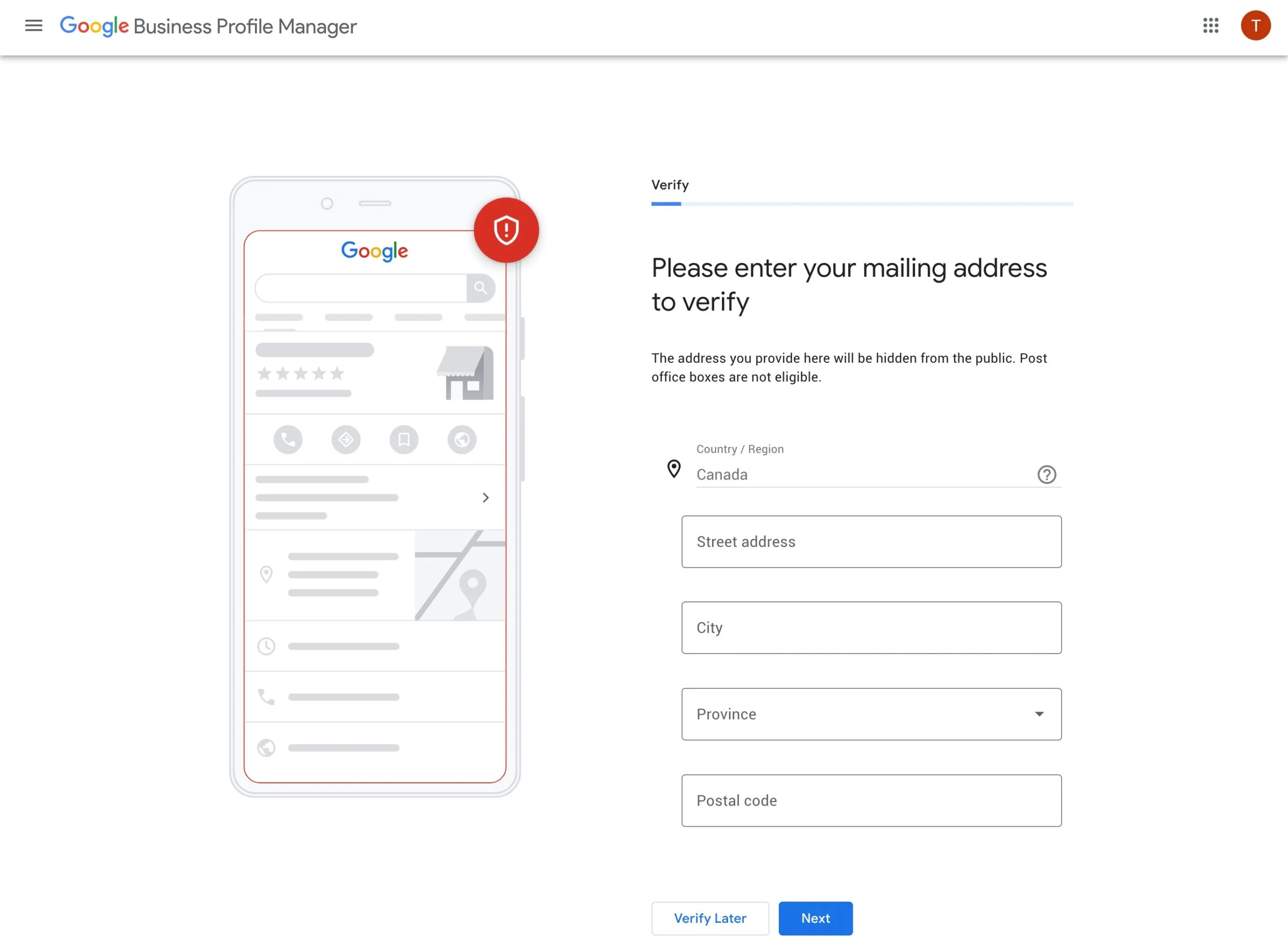
What if no card comes after a fair wait past 14 days? Then check the address on your profile letter by letter. A wrong suite number or a wrong zip can send your card to the wrong door. Fix the address if it is wrong, know that the fix restarts the wait, and request the card once, to the right address.

Are there ways to verify at once, with no code and no video?
For some shops, yes — but you cannot ask for them. Google may verify a profile at once if the business website is already verified in Google Search Console under the same account. Search Console is Google's free tool that proves you run a website. If Google can already see that you run the real site for the business, it may count that as strong proof and skip the code and video steps. You cannot force this. You can only set up the fair chance for it: have your real website, verify it in Search Console with the same Google account that runs your profile, and keep the name, address, and phone on the site the same as on your profile.
Large firms have one more path. Bulk verification is for a business with 10 or more locations. Bulk means many at once. It is a status Google grants after it checks the firm, not a button you tap for one shop. If you run one shop, this path is not for you, and any firm that sells "bulk tricks" to a one-shop owner is selling fog. Skip it.
Count the math so the whole map is clear in your head. Five main ways — video, phone or text, email, live call, postcard — plus these two special cases some shops get: instant proof through Search Console, and bulk for 10 or more locations. 5 + 2 = 7 paths in total, and Google, not you, decides which ones your profile sees.
What should you do when verification fails or loops?
A fail feels awful. You did the work, you waited days, and the Get verified button is just... back. Like you never tried. Take a breath. A fail is most often a gap in proof, not a judgment that your business is fake. Here is the plan, in order.
Step one: read what Google tells you. If the Get verified button shows up again, Google could not fully verify you with that try. For a video, look for Review issues in your profile. That spot names what was wrong or missing. Read it word by word. Most owners skip this and re-film the same video with the same gap, then fail again for the same reason. The note is the map. Use it.
Step two: name your gap with the three boxes. Was location weak? Maybe you never showed a street sign or your street number. Was the business weak? Maybe your sign was not in the take, or your tools were still in a closed van. Was the manager box blank? Maybe you never opened a thing with a key or showed a paper in your name. Write the gap down in one line. "Box three was blank. I did not show proof I run it." Now you know your one fix.
Step three: fix that one gap — and keep the parts that passed. Film a new video that shows all three boxes again, with the weak box made strong. Do not drop a scene that passed to make room for the new one. All three must be in the one take, every time.
Step four: check for loops of your own making. A loop means you keep landing back at the start. Common self-made loops: you edit your name or address between tries, so each try is judged as a new, changed business. You request a new postcard code again and again, so each code cancels the last. You make a brand-new second profile for the same shop, so now Google sees two claims and trusts neither. Stop all three. One profile. Stable facts. One method, worked all the way through.
Step five: wait the full wait before you judge. Reviews can take up to 5 business days. A postcard can take 14 days just to arrive. Mark the days on a calendar. If you are in a video review, count 5 business days — that is one full work week — before you treat silence as a problem.
Step six: if you did all of the above and you are still stuck, go to Google support through your profile's help path, or the Google Business Profile help community, where trained product experts answer. Have facts in hand: your business name, your address, the dates of your tries, and what the Review issues note said. A clear, dated list gets better help than a plea. And never pay a stranger who says they can "force" verification or sell you a verified profile. A bought profile can be taken down, and the money is gone. There is no paid fast lane for this step. Verification itself is free.
One last honest limit. Sometimes Google asks a verified shop to verify again later — after a big change to your name, address, or category, or in a random check. That is called re-verification. It does not mean you did wrong. Keep your proof items — sign, papers, keys, gear — in their places, and a second round is just the same steps, done once more.

Your free tool for this step
Your free tool for this step is the GMB Profile Grader on aidcos.world free tools.
GMB is short for Google Business Profile. The Grader is a checklist tool for that profile. You go through the checklist, and it gives your profile a letter grade from A to F, like a school grade. An A means your profile is strong. An F means big parts are missing or wrong. More than the grade, the tool ranks the 3 fixes that will help you most, in order, so you know where to start first.
Here is the honest frame for this tool. The Grader does not verify your profile. Only Google verifies your profile, by one of the ways in this post. The Grader helps you before and after. Before you verify, run the checklist and fix the facts it flags — a wrong name form, a missing category, thin facts — so the profile Google checks is clean and matches your sign and your papers. That match is what the video and postcard checks are really testing. After you verify, grade again, fix the top 3 items, and your newly live profile starts strong on Search and Maps, not half done.
Use it like this. Run the Grader. Fix the name, hours, or phone gaps it names, so your facts match everywhere. Then do your verification the way Google offers it. Then grade once more and fix the new top 3. Proof first, polish right after — in that order.
The bottom line
Verify your Google Business Profile by the method Google picks for you, not the one you wish you had. Have your matched facts, your street proof, your sign and tools, your keys, and a paper in your business name ready before you start. For a video, prove place, business, and that you run it, in one live take of at least 30 seconds, with no private numbers and no other faces on camera. For a postcard, guard the wait: no edits, no new code request, and type the 5-digit code well inside its 30-day life. Reviews can take up to 5 business days, so count the days before you fear the worst. If a try fails, read the note, fix the one gap, and try again on the same profile — and never pay anyone who claims they can force this free step.
Part of: Google Business Profile Help: Costs, Fixes, and Guides for Local Businesses
More guides in this branch:
Keep reading: all Aid & Cos deep-dives