Google Business Profile Attributes: Your Rivals Show 5 Badges, You Show None
You search for a shop like yours on your phone. Three shops come up. The first shop shows small tags under its name. One tag says who owns it. One tag says you can get in with a chair on wheels. One tag says it has free Wi-Fi. You tap that shop first. Then you look at your own shop. Your name is there. Your stars are there. But you show no tags at all. You did the same good work. You just did not tell Google the true facts. This post shows you how to fix that.
Attributes are short true facts on your Google profile that show as small tags or labels. They answer buyer questions before the buyer calls you. Open your profile, go to Edit profile and then to the business facts area, and pick each fact that is true for you.
What the video shows: This video is called "1 Profile, 5 Fields, Only You Can Fix What Google Shows, how to optimize google business profile." It is about checking your Google Business Profile and fixing the fields Google shows to buyers. Those fields are the same ground this post covers: the small facts and badges on your profile that tell a buyer what your business offers.
What is an attribute, in plain words?
An attribute is a short fact about your shop. Attribute is a hard word. In this post it just means a fact tag.
Your Google Business Profile is your free shop page on Google. It is the box with your name, your stars, your hours, and your phone number. Buyers see it when they search or when they look at a map.
An attribute sits on that box as a label. Think of it like a small tag on a shirt in a store. The tag does not tell the whole tale of the shirt. It tells one quick fact. It may say the size. It may say the cloth. A buyer reads the tag and knows fast if the shirt fits her needs.
Your profile tags work the same way. One tag may say you take cards. One tag may say you have seats outside. One tag may say who owns the shop. Each tag answers one question in one glance.
Why does that help? A buyer has doubts before she calls. Can I get in the door? Can I pay with a card? Will I feel welcome here? If the tag answers the doubt, she is more apt to call. If there is no tag, she may pick the next shop that did answer.
You do not write these tags in your own words. Google gives you a list to pick from. You pick the ones that are true. Google then shows them on your profile.
Where do you find attributes in your profile?
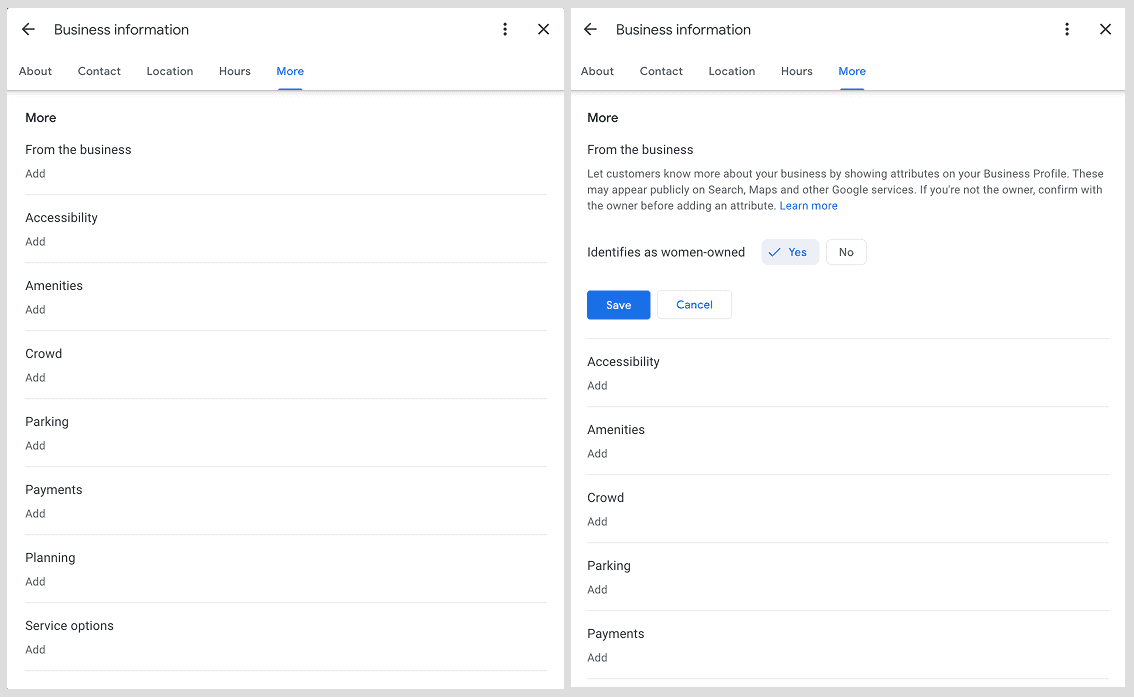
You find them in the edit screens. Edit means to change or fix. Follow these steps.
Step 1. Sign in with the account that owns the profile. With the wrong account, you will not see the edit tools.
Step 2. Search your shop name on Google. Open Edit profile. That is the door to all the settings.
Step 3. Look for the business facts area. On some screens it is called business information. On some screens you tap to see more areas in the editor. Look for the area that holds facts about the business itself, not hours and not photos.
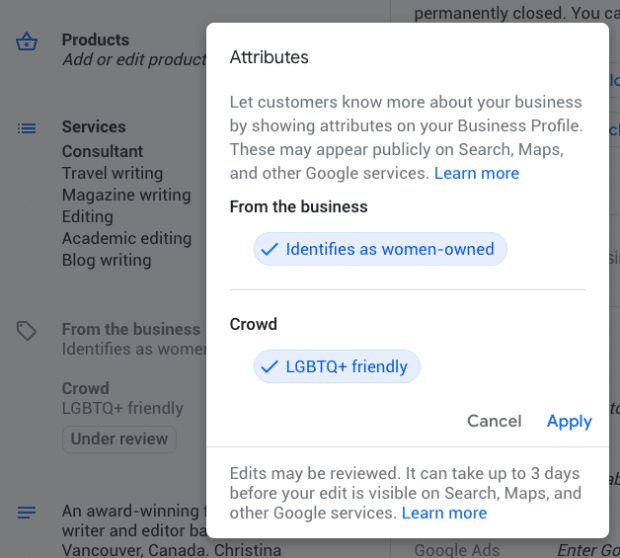
Step 4. Scroll down in that area. You will see lists of facts you can turn on or pick. Some are yes or no picks. Some let you add a fact with a tap.
Step 5. Pick one fact at a time. For each fact, ask one question first: is this true of my real shop, right now? If yes, pick it. If no, skip it. If you are not sure, skip it and check the real place first.
Step 6. Save. Then check your live profile as a buyer would see it. Search your shop on a phone. Look under your name. Do the new tags show? If a tag does not show at once, give it time and check again later.
Do this when your shop is calm, not in a rush while a buyer waits. Write down each pick you made on paper. That list will help you when facts change later.
What kinds of facts can you pick?
Google groups these facts in a few clear kinds. Not every shop sees every kind. This part names the kinds that exist on Google, with real cases of each.
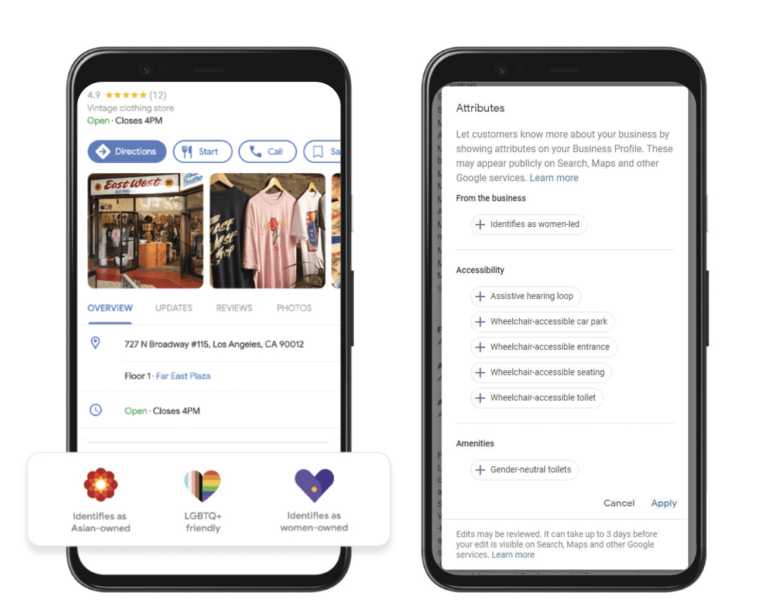
First, facts about who owns the shop. Cases that exist on Google are “women-owned,” “veteran-owned,” “Black-owned,” and “Latino-owned.” Veteran means a person who served in the armed forces. These facts live in the business facts area. Pick one only if it is true of the real owner.
Second, facts about how a person gets in and moves. One case is “wheelchair accessible.” Wheelchair accessible means a person who uses a chair on wheels can get in and use the place. Google has facts of this kind for the entrance, for parking, and for seating. Entrance means the door and the path to the door. If your door has steps with no ramp, do not claim this fact for the entrance. Check each part on its own. Do not claim the whole place from one good part.
Third, facts about comfort and welcome. Cases that exist are “free Wi-Fi,” “outdoor seating,” and “LGBTQ+ friendly.” Wi-Fi is the wireless link that lets phones and laptops get online. Free means the buyer does not pay to use it. Outdoor seating means seats outside where a buyer can sit. Friendly means all buyers are treated with care and respect. Pick these only if a buyer who comes in will find them true that day.
Fourth, facts about pay and service. These cover how a buyer can pay and what kinds of service you give. The exact list shifts by shop kind. If you take that form of pay, say so. If you do not, do not say so.
Read this list as a menu of what can exist. It is not a promise that your shop can claim each one. The next part tells why.
Why does your kind of shop change the list you see?
This is the hardest idea in this post, so we will say it two ways, with two pictures in your mind.
First picture: think of a lunch menu. A lunch place and a shoe store do not get the same menu card at the table. The lunch card lists soups and drinks. The shoe card would list sizes and fits, if it had a card at all. It would make no sense to give the soup list to the shoe store. Google works in the same way. It gives each kind of shop the list of facts that fits that kind of work. That is why your list may not match the list a shop down the road sees.
Second picture, same rule: think of a tool box. A plumber and a baker each have a box. Both boxes have real tools. But the plumber box has a wrench for pipes. The baker box has pans for the oven. You can only pick tools that are in your own box. If a tool is not in your box, you did not miss it and you did not fail. It was never meant for your kind of work.
Kind of shop means your business category. Category is the word Google uses for your type of work, like “hair salon” or “tire shop.” Your category tells Google which list to show you.
So if a rival shows a tag you do not see in your list, do not panic. The rival may be in a new category, with a new list. You can only pick from your own list. Work your own list well.
One more truth. Some facts must be true of the real place, not just true on a screen. A tag on a phone does not make a step flat. Check the real door, the real lot, and the real seats with your own eyes before you pick.
How do you check what your rivals show, in an honest way?
Do not guess what rivals show. Look. This is a small audit. Audit means a careful check, step by step. It takes about 20 minutes. That is one third of one hour. 20 times 3 is 60, and 60 minutes make one hour.
Step 1. On your phone, search your trade plus your town. Trade means your kind of work. For case, a hair shop owner would search “hair salon” plus her town name.
Step 2. Open the top 5 profiles, one by one. Five is a good count. It is large to show a pattern and small to check with care. For each shop, write down each tag it shows under its name. Use paper. One line per shop.
Step 3. Count. Here is worked math with made-up counts to show the method, not real shops. Say the 5 shops show 5 tags, 4 tags, 3 tags, 2 tags, and 0 tags. Add them: 5 plus 4 is 9. 9 plus 3 is 12. 12 plus 2 is 14. 14 plus 0 is 14. That is close to 3 tags per shop. The top shop shows 5. If you show 0, you are 5 behind. 5 minus 0 is 5. That gap is your work list size at most. Step 4 cuts it down.
Step 4. For each tag a rival shows, ask two questions. Is this tag in my own pick list in Google? Is this tag true for my real shop right now? Put a star by a tag only if both answers are yes.
Step 5. Pick only the starred tags in your profile. Save. Then check your live profile again as a buyer.
Your goal is not to have the most tags. Your goal is to have all your true tags and no false ones. The 5 badges in the title work the same way. Read them as a worked case list to learn the method. They are not a promise that every shop can claim all 5. Your starred list is your true list. It may have 2 tags. It may have 6 tags. True beats big, each time.
How do you pick well when you are not sure?
Use this test for each fact. It has 3 checks. A fact must pass all 3 to earn a pick.
Check 1. Can I prove it today? If a buyer came in today, would she find this fact true with no help from me? Free Wi-Fi that works only on some days fails this check.
Check 2. Will it still be true next month if I change nothing? A fact about your door, your lot, or who owns the shop tends to last. A fact about a one-week deal does not belong in this list. Deals go in posts, not in these tags.
Check 3. Would I be proud if a buyer read the tag out loud in my shop? If the words would make you flinch, do not pick the tag. That flinch is data. Trust it.
Write a short note by each pick on your paper list. Note the date you checked it and how you checked it. Good notes turn a guess into a record. If two people run the shop, have both people check the list. One may know the Wi-Fi changed. The other may know the outside seats went into storage.
What goes wrong if you claim a fact that is not true?
Short term, a false tag may bring one more call. Long term, it costs much more than it brings. Here is why.
A buyer trusts the tag and acts on it. She drives to your shop for the very fact you claimed. She finds it is not true. She feels tricked in a way she will recall.
What can come next is plain. She can file a complaint. Complaint means she tells Google or tells you, in a formal way, that the fact was wrong. She can leave a review that calls out the false tag by name. Review means the words and stars a buyer leaves on your profile for all to read. A review that says “the tag said this, but it was not true” hurts more than a plain bad review, since it questions your truth, not just your work. Google can also edit or remove a false fact from your profile.
Do the math on trust. If 10 buyers a day see a false tag, that is 10 times 7, which is 70 buyers in one week who saw a claim you cannot back. Even if just 1 of those 70 comes in and finds it false, that 1 buyer can leave a review that stays for a long time. One true tag helps each of those 70 in a quiet way and risks nothing. True tags add up. False tags blow up.
So the rule is short: claim only what is true. If you want a tag you cannot claim today, fix the real place first. Then claim the tag when it is true.
How do you keep your facts fresh when things change?
Facts change. Shops move. Shops drop a service. Shops add a new way to pay. Your tags must change when the real facts change, or true tags turn false with no ill will from you.
Set a rhythm. Rhythm means a time pattern you repeat. Pick one calm day each few months and walk your paper list again. Check the door. Check the lot. Check the seats. Check the Wi-Fi by joining it as a buyer would. If a fact is no longer true, turn it off that same day.
Watch for 4 change events that call for a fast check. You move to a new place. You drop a service you used to give. You change how buyers can pay. You change who owns the shop. Each can flip a tag from true to false in one day. When one hits, open Edit profile and fix the list at once.
There is an honest limit here. You do not rule how Google shows the tags, where it puts them, or if it shows all of them to each buyer. That is Google's call on its own page. Your job is the part you rule: a full, true, fresh list on your side.
Your free tool for this step: the GMB Profile Grader
When your picks are saved, grade the whole profile with the GMB Profile Grader on the Aid & Cos site. It is a guided checklist. Guided checklist means it walks you through each part in order and asks you to check each one. It gives your profile a letter grade, from A to F. A is the best grade. F is the worst grade. It also ranks the 3 highest-impact fixes. Highest-impact means the fixes that help the most if you do them first. Read the grade. Do fix 1. Check it live. Do fix 2. Check it live. Do fix 3. If a fix is about facts or tags, use the true test from this post before you pick or drop a tag. Grade again after the fixes. Your goal is not just a high grade. Your goal is a high grade built on true facts.
The bottom line
Attributes are short true facts that show as tags on your Google profile. They answer buyer doubts before the call. Find them in Edit profile, in the business facts area. Pick only from the list Google gives your kind of shop, and pick only what is true today. Check rivals with an honest audit, star only the tags offered to you and true for you, and claim those. Turn off a tag the day its fact stops being true.
Part of: Google Business Profile Help: Costs, Fixes, and Guides for Local Businesses
More guides in this branch:
Keep reading: all Aid & Cos deep-dives