9 Services Buyers Search For by Name
A buyer types the name of one job into Google: not your shop name, just the job. "Drain repair near me." "Kids' haircut near me." Your shop does that job each week. Your profile never names it. So Google shows the shop down the road, whose profile does name it. Your services list is the part of your profile that names your jobs, one by one. If a job is not on the list, buyers who search for that job may never learn you do it. This post shows you how to build the list, name by name.
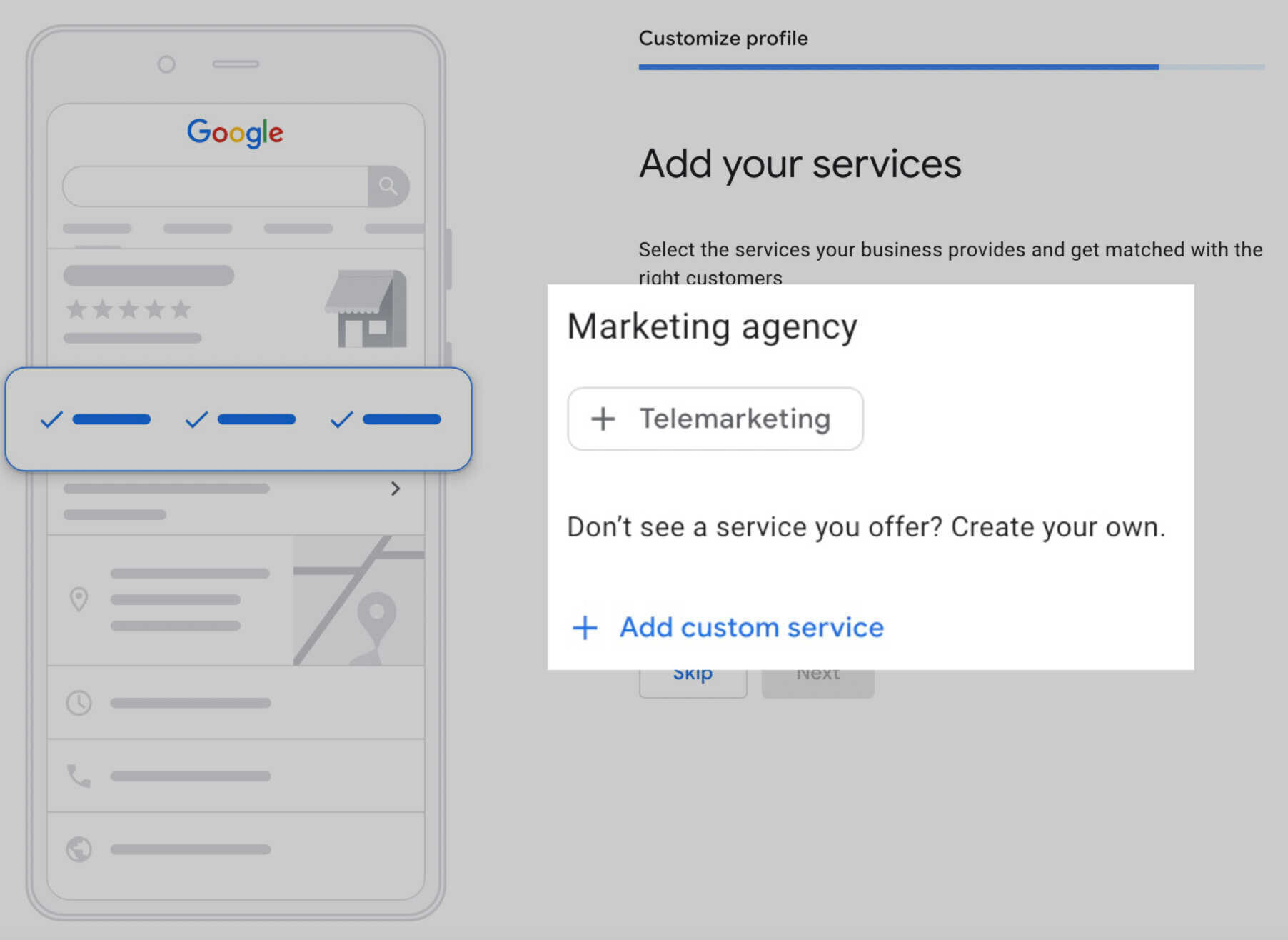
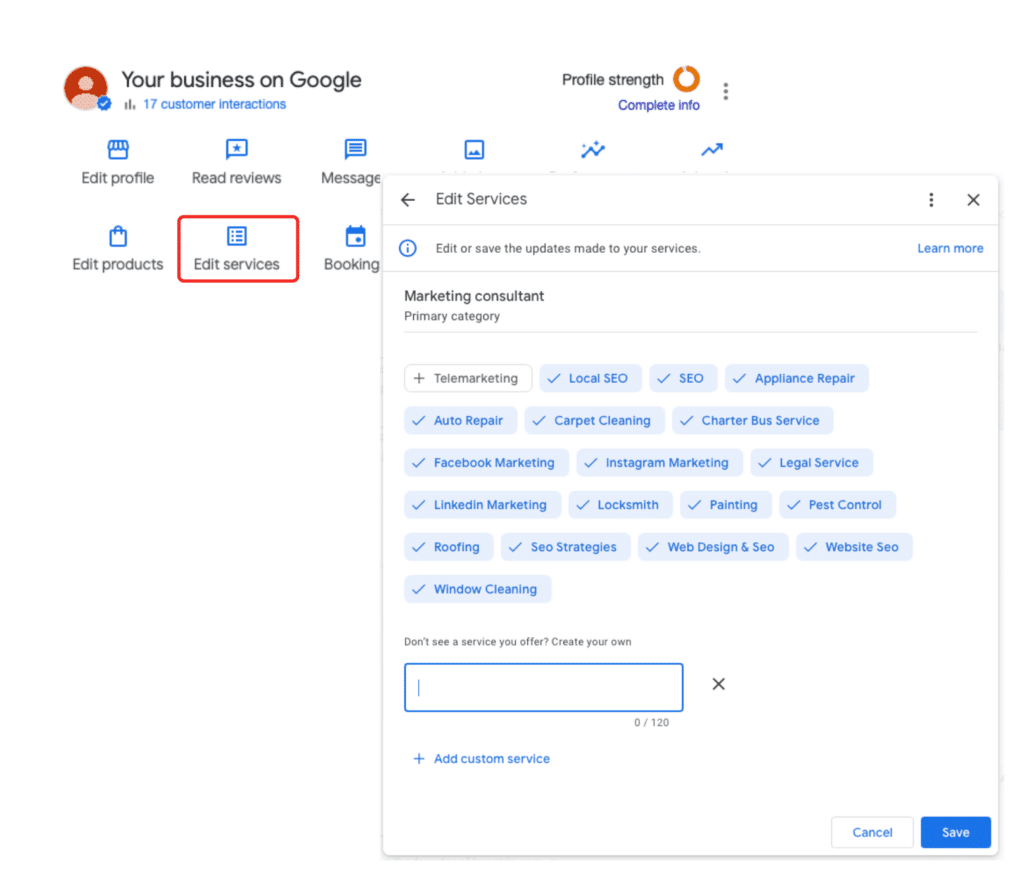
Open your profile, tap "Edit services," and add each job you truly do. Pick from the list Google shows for your type of shop first. Those picks are called suggested services. For a job Google does not list, add a custom service in your own plain words. Group like jobs under one head, add a short note and a price where the form lets you, and cut any job you no longer do. Keep the list true: each name on it should be a job you would take a call for today.
What is a services list, in plain words?
Your Google Business Profile is your shop's page on Google Search and Maps. On that page, Google lets many shops show a services list. A service is one job you do for a buyer: a cut, a fix, a clean, a check. The list is the set of those jobs, shown in one place on your profile.
Google's own help page on services says the key fact in one line: when buyers search for a job you provide, that service may be marked out, or highlighted, on your profile. Highlighted means shown with weight, so the eye lands on it. The buyer searched for the job. Your profile names the job. The match is plain for the buyer to see.
Think of it like a menu at a food stand. This is the one picture we will use for this idea, and we will stay with it. A stand with no menu makes each buyer ask, "What do you sell?" Most buyers will not ask. They walk to the next stand, the one with a menu taped to the front. Your services list is your menu taped to the front. It does not cook the food. It tells the street what you cook, so the right buyers stop.
Here is the same idea said a second way, since it is the hardest idea in this post. Think of your profile as a shelf in a store. Each service you add is one labeled jar on the shelf. A buyer comes in and asks for one thing by name. If the jar with that name is on your shelf, the buyer finds it and stays. If the jar is not there, the buyer thinks you do not stock it — even if the jar sits in your back room, full. Work you do but do not list is work in the back room. The list moves it to the shelf.
Two more facts set the frame. First, not all shop types get the services form. Google gives it to shops in certain classes, like service shops that go to the buyer or do jobs on site. If your profile has no "Edit services" path, that is a limit of your class, not a flaw in your work. Second, on the Google Maps app, buyers can open your full list of services. The list is real buyer-facing text, not a back-room note for Google alone. Write each line for a buyer first.
How do you add services, step by step?
Step 1. Sign in to the Google account that runs your profile. Use the owner account or an account that helps run the shop. A plain Google account with no role on the profile can view the page but cannot change the list.
Step 2. Search your shop name on Google, or open your profile in the Google Maps app. Find the box that says "Your business on Google."
Step 3. Look for "Edit services." On some screens it sits as its own button near the profile tools. On others, open "Edit profile" first and find the services part of the form. Names shift a bit by screen and by app. The word to hunt for is "services."
Step 4. You will see your classes. A class here is the kind of shop Google takes you for, like plumber or salon. Your services sit under classes. If you have more than one class on the profile, each class can hold its own set of services.
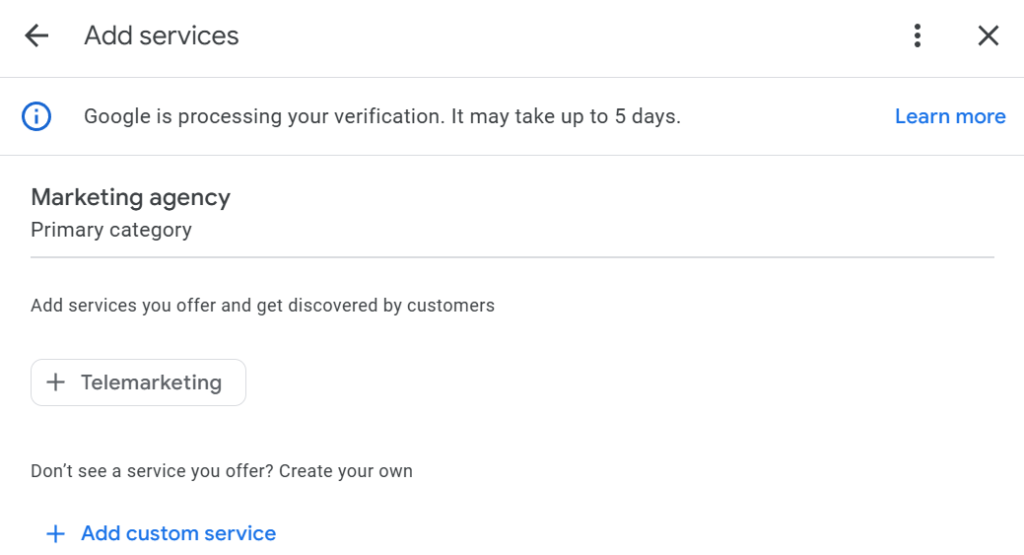
Step 5. Add the suggested services first. Google shows picks made for your class. Its own case: a plumbing shop may be shown picks like "install" jobs for the parts a plumber fits. Read each pick. Tap to add each one you truly do. Skip each one you do not do, even if it sounds close. Close is not true.
Step 6. Add custom services for the jobs Google missed. Tap the path to add a custom service. Type the job name in plain words a buyer would type. Keep the name clean: Google's help warns that custom services that break its rules get turned down on their own. Do not put prices, phone numbers, or private facts in the name field. Do not use junk text or rude words. The name field is for the name of the job. Prices, where the form gives you a price field, go there — not in the name.
Step 7. Group like jobs. The editor lets you group services into sets, like a class inside your list. A salon might group cuts in one set and color work in a second set. A group is a head line with jobs under it. Groups help a buyer scan. A flat list of 20 jobs with no heads is hard to read. 20 jobs in 4 groups of 5 is the same list, but the eye can hold it: 4 times 5 is 20.
Step 8. Add a note for each service where the form lets you. A note is a short text that says what the job covers. Keep it plain and true: what you do, how long it tends to take if you state time, and what it does not cover. Notes are where a buyer learns if your job fits the need in front of them.
Step 9. Add prices where the form gives a price field and your price is firm. Firm means the price does not shift from job to job. If your price shifts with the size of the job, a note that says "price set after a look" is more true than a fixed number that is wrong half the time. A wrong firm price in print costs more trust than no price at all.
Step 10. Save. Then view your profile as a buyer, in the Maps app and in Search. Open the services list. Read each line as if you had never met your shop. Each line should name a job you would take a call for today.
Which services should you add first?
Start with the jobs buyers ask for by name. Your phone log and your front desk hold that list. The jobs you get asked about most are the jobs buyers type into Google most. That is not a guess about the web. It is your own shop's facts.
Make a first list of 9. Why 9? It is a size you can finish in one sit, and it covers the core of most shops. Count your core jobs on your hands. If you can name 9 jobs you do each month, those 9 are your start. A shop that does 5 core jobs adds 5. A shop that does 14 adds the top 9 first and the rest in a second sit. The math is yours. The rule is order: most-asked first.
Sort your list with 3 checks for each job.
Check 1. Do we do this job now, with our own hands or our own crew? If you send the job to a second shop, it is not your service. Leave it off.
Check 2. Would we take a call for this job today, at our true price? If the job is one you dread and turn down, it does not earn a line. A line on the list is a promise to the street.
Check 3. Do buyers ask for this job by this name? Use the buyer's words, not your shop's pet name for the job. If buyers say "water heater install" and your crew says "tank swap," the list line uses the buyer's words. The list is writ for the search box, and the search box holds buyer words.
Work one case in full. Say you run a small salon. Your book shows cuts, color, kids' cuts, and blowouts as your top work. That is 4 core jobs. Add perm work and deep care if you do them: 6. Add wedding party work and beard trims if your shop does them: 8. Add a first-visit consult if you give one: 9. Nine lines, each true, each asked for by name. A buyer who types any of those 9 job names can now see your shop name that job back.
Work a trade case too. A plumbing shop lists drain repair, leak repair, water heater install, and toilet install from the suggested picks. Then it adds 2 custom lines for jobs Google did not list but the shop does each week. 4 plus 2 is 6 lines. Six true lines beat 16 lines padded with jobs the shop sends down the road.
What is the gap between suggested and custom services?
Suggested services are Google's picks for your class. They hold 2 pluses. First, the words match what Google's own forms expect, so they sail through. Second, they use the trade words buyers know, since Google built the list from real shop classes.
Their limit is reach. Google's list ends where your shop's own craft starts. A job that is rare, new, or local to your town may not be on it. That is the gap custom services fill.
Custom services are lines you write. They hold 1 plus and 2 risks. The plus: you can name the exact job, in buyer words, that your shop is known for. Risk 1: you may name it in shop words no buyer types. Fix that with Check 3 above. Risk 2: the name may break Google's rules for the field — a price in the name, a phone number in the name, junk text. Google turns those down on its own, so a bad name does not just read poorly, it may never show at all. Keep names short, clean, and free of prices and phone facts.
A good list uses both. Suggested picks form the spine. Custom lines add the craft only your shop does. Say a list has 9 lines: 6 suggested and 3 custom. 6 plus 3 is 9. That mix is sound for most shops: most of the list in Google's own words, a third of it in yours.
What are the traps that hurt a services list?
Trap 1. You list jobs you do not do, to catch more searches. This is the worst trap on the list. A buyer who calls for a listed job and hears "we do not do that" does not just hang up. That buyer may leave a review that says your profile lies. Keep the list true, line by line. If you stop a job, cut the line the same week.
Trap 2. You stuff the name with town names and hype words. A name like "Best cheap fast drain repair in town" is not a job name. It is an ad in a name field. It reads as spam, and spam means junk text sent to grab eyes, not to teach. Name the job. Just the job.
Trap 3. You add the same job 3 times in 3 word forms. "Drain repair," "drain fix," and "fix drains" are one job, not 3. Dupes make the list look padded and can hide your real range. One line per job. Pick the buyer-word form and move on.
Trap 4. You build the list once and never touch it for a year. Shops shift. You add a job in spring. You drop a job in fall. Your list should shift when your work shifts. Put a services check on the same monthly rhythm as your hours check. Two checks, one sit, once a month.
Trap 5. You forget the classes drive the picks. If your main class is wrong, the suggested list will be wrong too, full of jobs for a shop you are not. If the picks look like they belong to a trade you are not in, stop. Fix your class first, then build the list. The list rests on the class the way a shelf rests on its wall studs.
Trap 6. You write notes that promise what you cannot back. A note that says "same-day, each time" when you run 2 days out half the year is a claim your own book refutes. Refute means to show a claim is false. Write notes you can back on a hard week, not just a light one. Plain and true wins, in notes as in names.
How do you keep the list true over time?
Give the list an owner and a date. One named person on your crew owns the list. Each month, that person does a 15-minute pass. 15 minutes a month is 15 times 12, which is 180 minutes a year — 3 hours a year to keep your menu true.
The pass has 4 moves. Move 1: read each line and ask, "Do we still do this?" Cut the lines that fail. Move 2: ask the front desk or the phone log, "What did buyers ask for that is not on the list?" Add those jobs, if you do them. Move 3: read each custom name once more for rule breaks — no prices, no phone facts, no hype words. Move 4: view the list as a buyer in the Maps app. If a line reads odd there, fix the line, not the buyer.
When you add a whole new line of work — a new crew, a new skill, a new part of town you now serve — do a full pass that week, not at the month mark. New work is the time a list goes stale fastest, since the shop changed and the page did not.
Your free tool for this step: the GMB Profile Grader
Grade your profile with the GMB Profile Grader on the Aid & Cos site before and after you build your list. The Grader reads your Google Business Profile and gives you a score from 0 to 100 with named fixes for the weak fields. Grade once to see where your profile stands today. Build your services list with the steps above. Grade again and watch the mark move. The gap between the 2 marks is the proof your work did, in a number you can show your crew: first mark, work, second mark.
The bottom line
Your services list is your menu taped to the front of your stand. Add each job you truly do, in buyer words. Take the suggested picks for your class first, then add custom lines for the craft Google missed — clean names, no prices or phone facts in the name field, since rule-breaking names get turned down. Group like jobs, add true notes, and cut any job the week you stop doing it. Nine true lines, checked for 15 minutes once a month, tell the street what you cook. A buyer who searches for a job by name should find your name right next to it.
Part of: Google Business Profile Help: Costs, Fixes, and Guides for Local Businesses
More guides in this branch:
Keep reading: all Aid & Cos deep-dives