How to Update Google Business Hours: 1 Locked Door Costs You 5-Star Trust
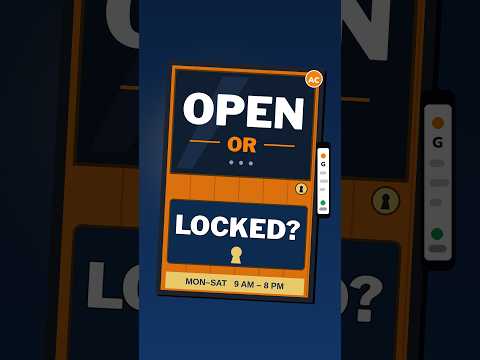
A buyer drives to your shop at 5 p.m. Your sign says you close at 6. Your door is locked. You closed at 5 for one day, but you never told Google. The buyer does not call you. The buyer leaves a 1-star review that says, "Google said open. Door was locked." One wrong line of hours on your Google Business Profile can cost you trust that took years to build. This post shows you how to set your hours right, all 3 kinds of them, step by step.
Your profile has 3 kinds of hours: main hours for a plain week, special hours for one odd date like a holiday, and more hours for one part of your work, like pickup or drive-through times. Set main hours first. Then set special hours for each holiday or short break. A short break of 6 days or less uses special hours. A break of 7 days or more uses the mark called "temporarily closed." Check the whole list once a month, and check it again before each holiday.
What the video shows: This short video is called "Update Your Business Hours on Google, Then Check the Public View." It covers the two parts of the job: update your business hours on Google, then look at your profile the way a guest sees it, to be sure the new hours are what shows. This post walks through the full fix, including holiday hours and one-time closures.
What are the 3 kinds of hours on your profile?
This is the hardest idea in this post, so we will say it two ways, with two pictures in your mind.
First picture: think of your hours like a school clock. Main hours are the plain school week. Class starts at the same time each day, week after week. Special hours are the one odd day, like a snow day or a half day for a fair. The school week does not change. Just that one day is new. More hours are the side clubs. Chess club meets at 3. Art club meets at 4. They are real times, but they are times for one part of the school, not the whole school.
Second picture, same rule: think of your hours like a train sign at a station. Main hours are the trains that run each day on the same plan. Special hours are the one day the plan shifts for a storm or a race in town. More hours are the one small train that runs just for freight, that is, goods, not people. Each line on the sign tells a true thing. Each line has its own job.
So here are the 3 kinds in plain words.
Kind 1. Main hours. These are the hours you are open in a plain week, day by day. Monday to Sunday, one row per day. This is the base. All else rests on it.
Kind 2. Special hours. These are hours for one date or a few dates in a row when the plain week does not hold. A holiday. A staff day. A short storm fix. Google states the rule in its own help pages: special hours fit a brief shift, or a shut of 6 days in a row or fewer. Special hours sit on top of main hours for those dates. When the dates pass, your main hours come back on their own. You do not have to undo the work.
Kind 3. More hours. These are hours for one part of your work that runs on its own clock. Google names cases like senior hours, drive-through hours, and pickup or delivery hours. If your shop takes calls all day but takes walk-ins for just part of the day, that part can have more hours of its own.
Three kinds. One base week. One set of odd dates. One set of part-of-the-work times. When you mix them up, buyers get a wrong sign. When you keep them apart, each buyer sees the true line.
How do you set your main hours, step by step?
Do this part first, even if your real need is a holiday. Special hours only show if your profile is set to "Open with main hours." If that switch is off, your holiday work hides.
Step 1. Sign in to the Google account that runs your profile. If you have more than one account, use the one that owns or helps run the shop. A wrong account shows you no edit tools.
Step 2. Search your shop name on Google, or open your profile in the Google Maps app. You will see a box that says "Your business on Google."
Step 3. Tap "Edit profile." A form opens with tabs at the top.
Step 4. Tap the "Hours" tab.
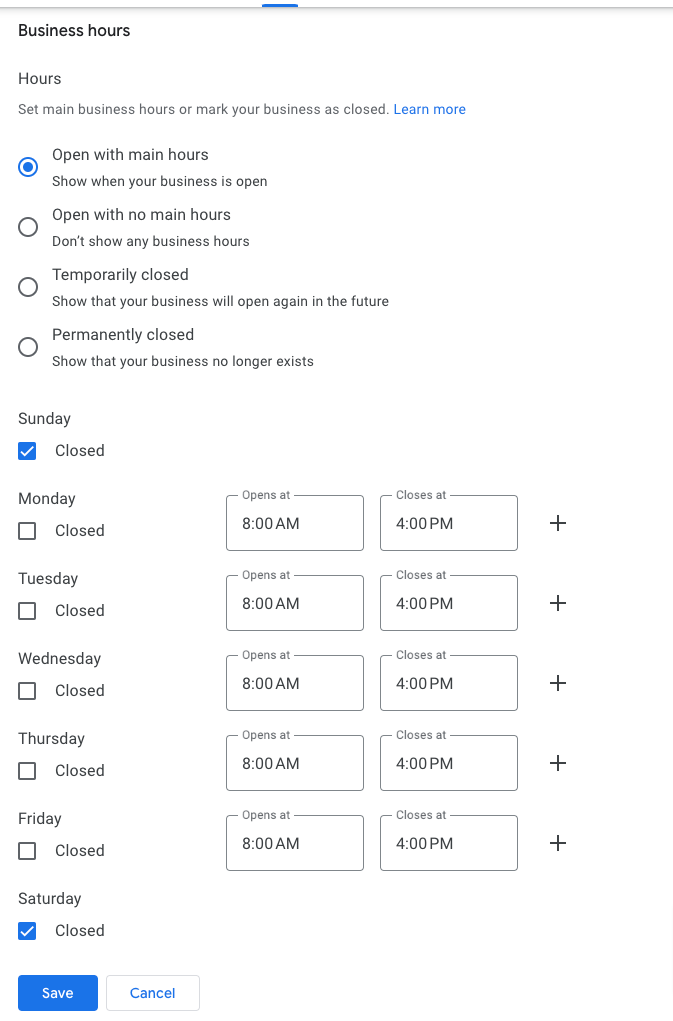
Step 5. Find the first block, the one for your main hours. Tap the pencil mark next to it. Pencil mark means the small tool you tap to change a field.
Step 6. Make sure "Open with main hours" is the pick in place. This is the switch that tells Google your main hours are the true base.
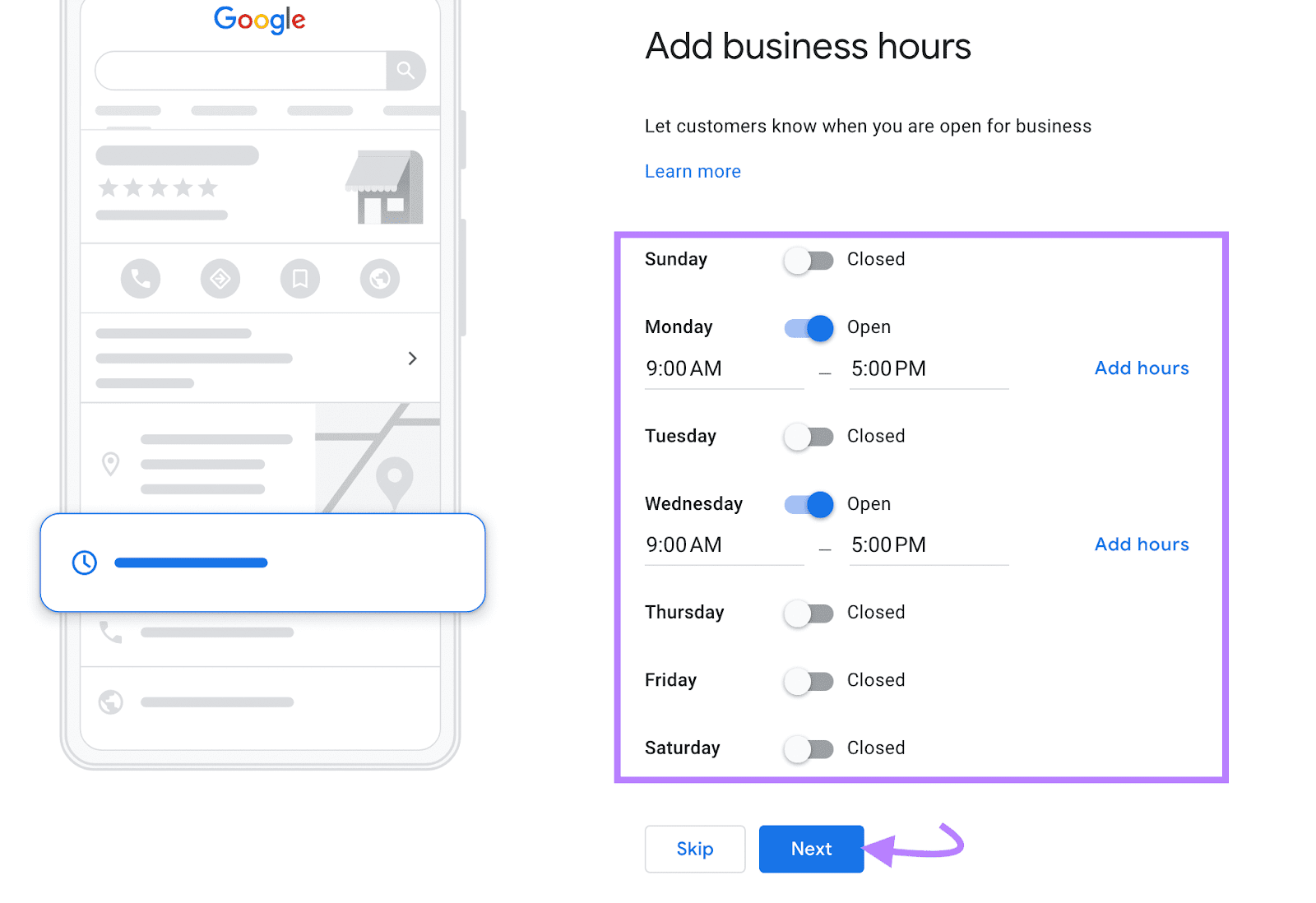
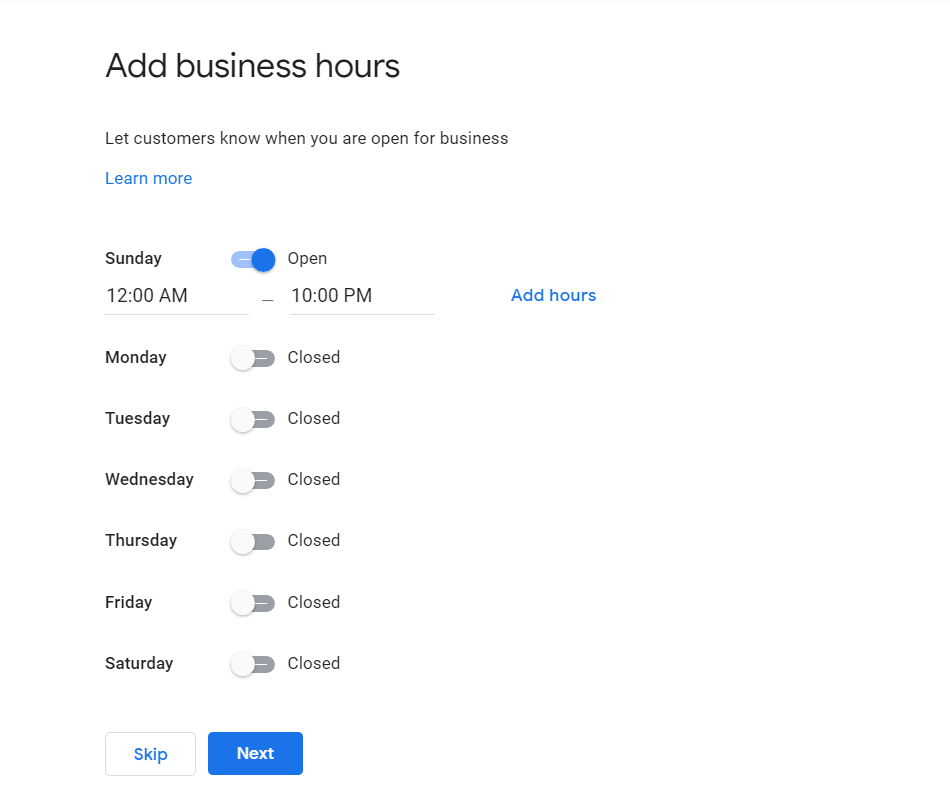
Step 7. Go day by day. For each day, set the open time and the close time. If you are shut all day, mark that day closed. Closed means you do not open at all that day. Do not leave a day blank and hope Google guesses. A blank day is a guess, and the guess can be wrong.
Step 8. Add a break if you shut mid-day. A break means you close for part of the day and open again. Say you shut from 1 p.m. to 2 p.m. for lunch. Google's own help says to make 2 rows for that day: one row from open to 1 p.m., and one row from 2 p.m. to close. Two rows, same day, no gap in the truth.
Step 9. Use the 24-hour pick only if you are truly open all day and all night. 24 hours is 12 plus 12, a full day with no shut time. If you shut at night, do not use it.
Step 10. Save. Then look at your profile the way a buyer sees it. Search your name in a fresh tab. Read the hours line out loud. Does it match your door sign? If not, go back and fix the row that is off.
Count the work. 7 days, one row each, is 7 rows. Add one lunch break on 5 work days and you add 5 more rows. 7 plus 5 is 12 rows to check. Twelve rows checked once beats one locked-door review read by 100 buyers.
How do you set special hours for a holiday?
Holidays are where most shops fail. The door sign gets a hand-made note. The Google sign keeps the old hours. A buyer trusts the Google sign, drives out, and finds a locked door.
Do this work ahead of the day, not on the day. One guide for shops notes that an hours change can take up to 3 days to show on Search and Maps. Three days is 72 hours. If the holiday is on Friday, set the hours by Tuesday to be safe.
Step 1. Open "Edit profile" and the "Hours" tab, the same path as above.
Step 2. Find the block for special hours. On some screens it sits under the name "Holiday hours." Tap the pencil mark.
Step 3. Google may list next holidays for your land and ask you to check them. For each one, pick one of 3: open with your main hours, open with new hours, or closed. Do not skip the ones where nothing shifts. Google asks you to confirm hours for a holiday even when they stay the same. Confirm means you say, "Yes, this line is true for that date."
Step 4. For a date Google does not list, tap "Add a date." Type the date. Set the open and close times for that date, or mark it closed.
Step 5. Save. Search your shop name again and look for the special-hours note on the profile for that date. If you do not see it, check that "Open with main hours" is still on. That switch gates the whole block.
Work one case in full. Say your shop is open 9 to 6 on a plain day. That is 9 hours of open time: 6 p.m. minus 9 a.m. is 9 hours. For a holiday, you plan to open 10 to 2. That is 4 hours: 2 p.m. minus 10 a.m. is 4 hours. Set that date with 10 to 2 as special hours. Your main hours stay 9 to 6. On the next plain day, the profile shows 9 to 6 again on its own. No second fix is due from you.
Work a shut case too. You plan to shut for the holiday and the next day. That is 2 days in a row. 2 is less than 6, so special hours fit: mark both dates closed in the special hours block. Your week base does not change.
When does a shut stop being special hours?
Know the line, since the wrong pick shows buyers the wrong sign.
Special hours fit a shut of 6 days in a row or fewer. 6 days is the top. Count your days in a row with care. If you shut on Monday and open again the next Monday, you were shut for 7 days in a row: Monday, Tuesday, Wednesday, Thursday, Friday, Saturday, Sunday. 7 is more than 6.
For a shut of 7 days or more, or a shut with no known end date, Google's help says to mark the shop "temporarily closed." Temporarily closed means shut for now, with a plan to open again, but not on a set near date. That mark tells buyers the truth in one line: do not drive here yet.
Do not use "permanently closed" for a break. Permanently closed means shut for good. That mark can push buyers away for months after you open your doors again. Use it only when the shop is done for good.
And do not leave wrong main hours in place and hope a post on your page clears it up. A post is a note. The hours line is the sign. Buyers read the sign first.
How do you set more hours for one part of your work?
Use more hours when one part of your work runs on a clock of its own. Google names these cases in its help: senior hours, drive-through hours, and pickup or delivery hours. Other shops set hours for a kitchen that shuts before the dining room, or a parts desk that opens late.
Step 1. Open "Edit profile" and the "Hours" tab.
Step 2. Find the "More hours" block. Tap the pencil mark or "Add more hours."
Step 3. Pick the kind of hours from the list Google gives for your type of shop. The list shifts by shop type. A food shop sees a set that a repair shop does not.
Step 4. Set the days and times for that part of the work. Keep them inside your main hours in most cases. If your shop is open 9 to 6 and pickup runs 10 to 5, those 7 hours sit inside the 9 main hours. 5 p.m. minus 10 a.m. is 7 hours. That math should hold for each row you add. A part-of-work time that runs past your close time is a red flag to check.
Step 5. Save and view the profile as a buyer. The more-hours line should read as a part of the whole, not as a rival set of main hours.
One trap to skip: do not copy your main hours into more hours just to fill the block. A full block is not the goal. A true block is the goal. If no part of your work has its own clock, leave more hours blank. Blank and true beats full and false.
What are the traps that lock buyers out?
Trap 1. You change the shop clock but not the Google clock. You start closing at 5 on Fridays. The door sign changes. The staff knows. Google still says 6. Each Friday, buyers who trust Google hit a locked door for 1 full hour, from 5 to 6. Fix the Google row the same day you fix the door sign. Same day, both signs.
Trap 2. You set holiday hours on the day itself. The update may take up to 3 days to show. A change made on the holiday can show after the holiday ends. Set it days ahead. For a big break, set it a full week ahead. 7 days beats 3 when your plan is firm.
Trap 3. You forget the time zone of your own head. You moved, or you run the profile from a trip, and you type times as if you were home. Read each row back with the shop's town in mind. The times on the profile must be the shop's local times, where the door is.
Trap 4. Your hours on your own web page say one thing and Google says a second thing. Buyers trust the one they see first, and they blame you for the clash. Keep 3 signs in line: the door sign, your web page, and the Google profile. When one shifts, shift all 3 in the same week.
Trap 5. You mark a day closed in main hours when you meant one date. Main hours are the base week. A closed mark there shuts that day each week, week after week. One-date shuts belong in special hours. Check which block you are in before you save.
Trap 6. You never confirm holiday hours that stay the same. Google asks, since a same-hours holiday is still a fact buyers want firm. A profile with firm hours reads as cared for. A profile with a "call to check hours" note reads as a guess. Confirm the date, even at the same times.
How do you check your hours like a buyer?
Do this 10-minute check once a month. 10 minutes a month is 10 times 12, which is 120 minutes a year. Two hours a year to guard the sign that brings you buyers all year is a fair trade.
Minute 1 to 2. Search your shop name on Google. Read the hours line for today. Is today marked right?
Minute 3 to 4. Tap the hours line to open the full week. Read all 7 days out loud. Match each day to your door sign.
Minute 5 to 6. Look for the next holiday in the next 45 days. Is it set in special hours, as open, shifted, or closed?
Minute 7 to 8. Check more hours, if you use them. Does each part-of-work line still sit inside your main hours?
Minute 9. Open the Maps app view of your profile. The same facts can show in a new order there. Read the top line.
Minute 10. Write the date of this check in your notes. Next month, you will know when the last true check was.
If you run more than one site or shop, do this check for each profile. Hours live per profile, not per owner. One true profile does not fix its twin.
Your free tool for this step: the GMB Profile Grader
Run your whole profile through the GMB Profile Grader on the Aid & Cos site. The Grader reads your Google Business Profile and gives you a score from 0 to 100 with a list of named fixes. A score is a mark, like a grade on a test. It shows you which fields are weak — hours among them — so you fix the right row first, not the row you happen to spot. Grade your profile after you set your hours, fix what the list names, then grade it once more to see the mark move.
The bottom line
Set your hours in the right 3 blocks and the locked-door review never gets writ. Main hours hold your plain week, with 2 rows on any day you shut mid-day. Special hours hold one odd date or a shut of 6 days or fewer, set days ahead since a change can take up to 3 days to show. A shut of 7 days or more gets the "temporarily closed" mark. More hours hold the one part of your work that runs on its own clock. Then check the whole sign like a buyer, 10 minutes once a month. True hours are a small task with a large yield: each buyer who finds your door open when Google said open learns to trust your name.
Part of: Google Business Profile Help: Costs, Fixes, and Guides for Local Businesses
More guides in this branch:
Keep reading: all Aid & Cos deep-dives